1
UGM96
ESI
4. UGM96 Control Panel
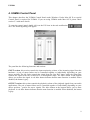
This chapter describes the UGM96 Control Panel under Windows. Under Mac OS X no special
Control Panel is required for UGM96. If you are using UGM96 under Mac OS X, please check
section 5.3 with more details.
To open the control panel double click on the ESI icon in the task notification
area. The following dialog will appear:
The panel has the following functions and sections:
INPUT section: this section controls the input monitoring volume of the incoming signal from the
hardware. A pair of mono faders can be controlled together or individually depending on your
mouse position The left fader controls the signal from the first Hi-Z input, while the right fader
controls the signal from the second Hi-Z or microphone input. The Mute button at the bottom
allows you to mute the signal. A red Mute button indicates that the mute function is enabled. When
disabled, the button is gray.
OUTPUT section: this section controls the playback volume of the playback signal from your audio
applications. The pair of mono faders can be controlled together or individually depending on your
mouse position – perfect for stereo signals. The Mute button at the bottom allows you to mute
playback. A red Mute button indicates that the mute function is enabled. When disabled, the button
is gray.
9