1
RSA SecurID Software Token 4.1 Administrator’s Guide
Once a device password is set, the application prompts for the device password the
first time that a user performs a protected operation with a token. For example, the
user must enter the device password after entering a PIN, renaming a token, or when
attempting to delete a token. The user is prompted for the device password only once
per session.
Set a Device Password
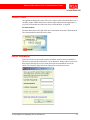
Use the following instructions to set a device password for the first time.
To set a device password:
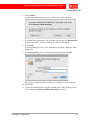
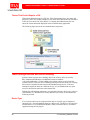
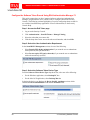
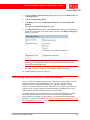
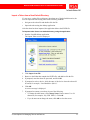
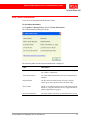
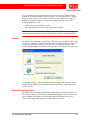
1. Click Options > Token Storage Devices, and click Change Device Password.
2. In the New Password field, enter a password.
3. In the Confirm Password field, reenter the password, and click OK.
Change a Device Password
Use the following instructions to change an existing device password.
To change a device password:
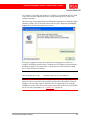
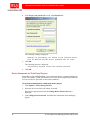
1. Click Options > Token Storage Devices, and click Change Device Password.
2. In the Current Password field, enter the existing password.
3. In the New Password field, enter a new password.
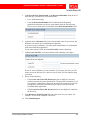
4. In the Confirm Password field, reenter the new password, and click OK.
Remove a Device Password
Use the following instructions to remove a device password. Keep in mind that this
removes the additional protection from the tokens stored on the local hard drive.
To remove a device password:
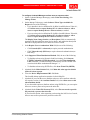
1. Click Options > Token Storage Devices, and then Change Device Password.
2. In the Current Password field, enter your existing password.
3. Leave the New Password and Confirm Password fields empty, and click OK.
74
4: User Options for Managing Tokens and Devices