1
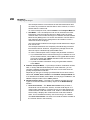
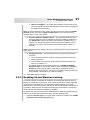
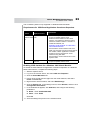
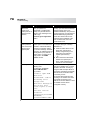
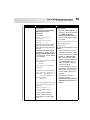
Quest NetVault Backup Plug-in for VMware User’s Guide Description Symptom Solution Restore job fails. A restore job fails with the following error: Log Message: “Failed to add VM to target server's inventory.” To correct this problem, use the following steps: Log Context: "Fault string is 'Invalid configuration for device '3'.'" When this error occurs, enable trace and run the restore job again. When the job completes, open the vmw<nnn>_soaprecv.log file, and check if it contains an XML <WaitForUpdatesExResponse > message with contents similar to the following: <val xsi:type="LocalizedMe thodFault"> <fault xsi:type="InvalidDevi ceSpec"> <property>deviceChang e[3].device.backing.f ileName</property> <deviceIndex>3</ deviceIndex> </fault> <localizedMessage>Inv alid configuration for device '3'.</ localizedMessage> </val> If yes, it indicates that the backup contains an invalid configuration for a CD or DVD drive. 79 1. Open the vmware.cfg file in a text editor. This file is located in the <NVBU Installation Directory>/config/ directory. 2. Edit the following entry, and set it to “True”: [Custom:ReconfigureVirt ualCdromDevices] Value=True (By default, this parameter is set to “False”.) 3. Rerun the restore job. It will complete successfully. If a CD or DVD drive was set to “Host Device” or “Datastore ISO File” type during the original backup, it will be reconfigured as “Client Device” type. A warning message in the logs will provide a list of reconfigured devices. The log context will include their original configuration. To view the log context, double-click the log message. 4. After restoring the virtual machine, reset the [Custom:ReconfigureVirtual CdromDevices] parameter to “False”.