1
No.
Item
Description
2
Fn
Enables typing the numbers / symbols indicated in the upper
right-hand corner of each key.
* Press once: Type a number or symbol for the next character.
* Press twice (Android keyboard) / Long press (XT9 input):
Switch to numbers and symbols mode.
* Fn + spacebar: Switch languages
3
Sym
Opens the symbols table.
4
Contacts
Opens contacts list.
5
Camera
Activates the camera.
6
Message
* Short press: Enter messaging.
* Long press: Enable and disable silent mode.
7
Enter key
Moves the cursor to the next line.
8
Delete key
Deletes the character to the left of the cursor.
Fn + Del: Deletes the character to the right of the cursor.
Onscreen Android keyboard
This is an additional onscreen keyboard that allows you to enter text. To enable
Android keyboard, tap Menu > Settings > Language & keyboard > Soft
keyboard status.
Note: After enabling, tap and hold a text box. This will open a menu listing the
text input methods available on your phone. Select Android keyboard.
Tap the ?123 button to see numbers and special
characters, and then tap the Alt key to see even more.
Tap and hold a key to select alternative characters,
such as letters with accents.
You can switch between multiple input languages by
swiping across the space bar. The keyboard layout will
change accordingly. To select your preferred
languages, tap Menu > Settings > Language & keyboard > Android keyboard >
Input languages.
The Home screen
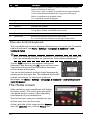
After rebooting, your smartphone will display
the Home screen. This screen gives you quick,
icon-based access to many of the frequently
used features of your smartphone.
The first time you start your smartphone, you
will see some icons on the screen.
At the right side of the screen are the Browser
icon, the Launcher icon, and the Phone icon.
14