1
Quick Guide
7
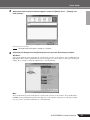
Select [VST Connections] from the [Devices] menu.
Windows:
If “Not Connected” is selected in the [Audio Device] field, click on the “Not Connected” indication, and
then switch to [ASIO DirectX Full Duplex Driver].
Also set the [Outputs] in the same way, and then close the window.
Mac:
If “Not Connected” is selected in the [Audio Device] field, click on the “Not Connected” indication, and
then switch to [USB Audio CODEC].
Also set the [Outputs] in the same way, and then close the window.
8
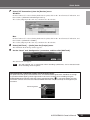
Select [Add Track] → [Audio] from the [Project] menu.
The Add Audio Track dialog window appears.
9
Set the “Count” and “Configuration” parameters, and then click [Add Track].
The added tracks will appear.
NOTE
You will normally use a stereo track when recording synthesizers, and a monaural track
when recording vocals or guitars.
Recording with maximum quality and minimum noise:
For optimum sound quality with minimum noise, the AUDIOGRAM signal levels should be set as high
as possible without clipping. Check signal levels to be sent to Cubase AI for recording using the
AUDIOGRAM level indicators while the Cubase monitoring button ( ) is turned off. Adjust the channel LEVEL controls so that the level indicator PEAK LEDs flash only occasionally on the highest input
transients.
Monitoring button
AUDIOGRAM 3 Owner’s Manual
13