1
Basic Operations
Playback
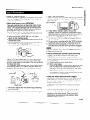
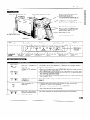
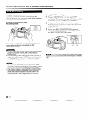
The LCD monitor screen makes it possible to play
back and see what you have just recorded. Nothing
needs to be connected, allowing instant on-screen
playback. You can hear the sound through the builtin speaker. You can also watch prerecorded
8 mm
video tapes on this VIEWCAM.
Searching for and Playing Back a Scene
Near the One Currently Being Played
Back
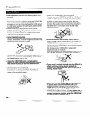
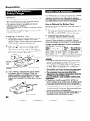
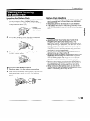
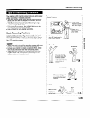
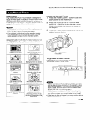
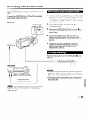
1 During playback, press the Forward Search
(or Reverse Search [ 441) button.
The fast forward (or reverse) playback
picture is displayed on-screen.
(bb)
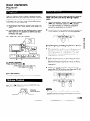
1 Hold down the Power switch and slide it to
VCR.
2
3
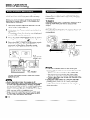
If the tape is not at the desired point, press
the REW (or FF) button to rewind (or fast
forward) the tape.
Press the PLAY (b)
2 When you find the desired scene, press the
PLAY button to return to normal playback.
1
button.
Searching for and Playing Back a Scene
Far from the Current One
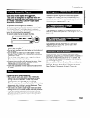
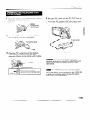
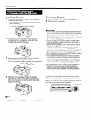
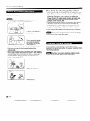
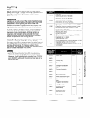
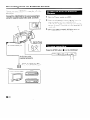
1 During fast forward (or rewind), press and
hold down the Forward Search (bb)
(or
Reverse Search [ 41)
button. The fast
forward (or reverse) playback picture is
displayed on-screen.
2 If the desired scene is still rather far from
that point, release the Forward Search (or
Reverse Search) button to return to Fast
Forward (or Rewind) mode, and repeat the
operation.
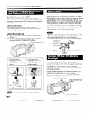
To Stop Playback
Press the STOP button (B).
3 When you finally find the desired scene,
press the STOP button and then the PLAY
button to start normal playback.
Auto Tape Rewind
The tape is automatically
rewound
reaches the end of the tape.
when playback
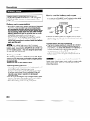
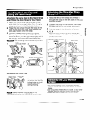
While the VIEWCAM is in VCR mode, press the
VOL. A or v button to increase or decrease the
volume to your preference.
control buttons
l
l
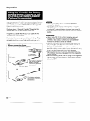
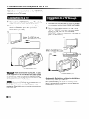
The sound is turned off during these searches.
During these searches, the picture on the LCD
monitor screen becomes monochrome and some
picture noise appears.
This is not a malfunction.