1
Crestron QM-MD4x2
QuickMedia Distribution System
control system to recognize a network device via its serial number, which is stored in
the device’s memory. This method does not require that any devices be disconnected
from the network; Net IDs may be set with the entire Cresnet system intact. This
method requires the use of the Crestron Viewport version 3.35 or later.
Use the appropriate method to set the Net ID.
Method A (Cresnet address-settable ID)
1.
Ensure that the device requiring a Net ID change is the only unit connected
to the control system.
2.
Open the Crestron Viewport.
3.
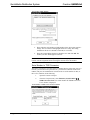
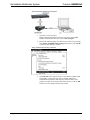
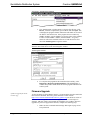
From the Viewport menu, select Functions | Set Network ID. The software
checks the baud rate and then opens the "Set Network ID" window.
4.
In the "Set Network ID" window, select the device requiring a Net ID
change from the Current Network Devices text window.
5.
Select the new Net ID for the device from the Choose the new network ID
for the selected device (Hex): text box.
6.
Click Set ID to initiate the change. This will display the "ID command has
been sent" window.
7.
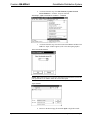
In the "Command Complete" window, click OK.
8.
In the Current Network Devices text window, verify the new Net ID code.
9.
In the "Set Network ID" window, click Close.
NOTE: The new Net ID code may also be verified by selecting Diagnostic | Report
Network Devices in the Viewport (alternately, select F4).
10. Repeat this procedure for each additional network device requiring a Net ID
change.
Method B (Touch Settable ID)
Before using this method, you should have a list of all current network devices and
their Net IDs, to avoid assigning duplicate IDs.
Set Net ID by TSID
These procedures are for TSID-enabled network devices during the initial
configuration of a Cresnet system or when such devices are being added/replaced.
Operations Guide - DOC. 6278
1.
Ensure that all network devices are connected to the control system.
2.
Open the Crestron Viewport version 3.35 or later.
3.
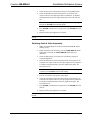
From the Viewport menu, select Functions | Assign Cresnet ID by Serial
Number. The “Set Net ID by TSID” window appears. The window is first
displayed with the data fields empty.
4.
Click on the Search for Touch Settable Devices button. The system
searches the network and lists all TSID-enabled devices found. The list is
similar to the report produced by pressing F4 (Report Network Devices);
the first eight digits of each line constitute the TSID number (hexadecimal
form of the serial number).
QuickMedia Distribution System: QM-MD4x2 • 13