1
FO-4700U
FO-47UC
3. Assembly and connections
3
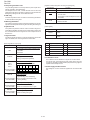
Points to keep in mind when setting up
•
Do not place the machine in direct sunlight.
•
Do not place the machine near heaters or air conditioners.
•
Keep dust away from the machine.
•
Install the machine on a level surface.
Connecting a telephone (optional)
If desired, you can connect a telephone to the TEL. SET jack
on the back of the machine.
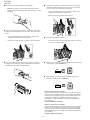
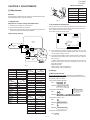
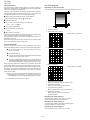
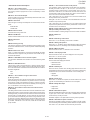
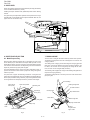
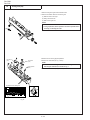
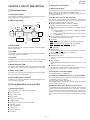
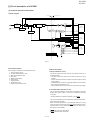
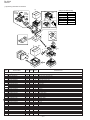
1 Connecting the power cord
Connect the female end of the power cord to the fax machine as
shown. Insert the male end into a 120 V, 60 Hz, grounded (3-prong)
AC outlet.
4
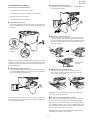
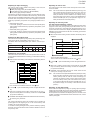
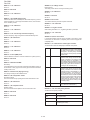
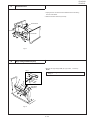
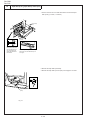
Attaching the document OUT tray
Insert the protrusion on the right side of the machine into the
hole in the right side of the document OUT tray as shown, then
bend the tray slightly and insert so that the protrusion on the left
side of the machine goes into the hole on the left side of the
document OUT tray.
Press the power
switch to turn on
the power.
Note: If your area experiences a high incidence of lightning or power
surges, we recommend that you install surge protectors for the power
and telephone lines. Surge protectors can be purchased at most telephone specialty stores.
Pull out the tray
extension.
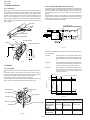
2 Connecting the telephone line cord
Insert one end of the line cord into the jack on the back of the machine marked TEL. LINE. Insert the other end into a standard
(RJ11C) single-line wall telephone jack.
5
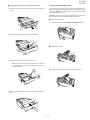
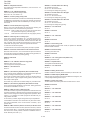
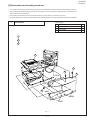
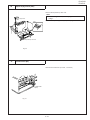
Attaching the received document tray
Slide the received document tray into the machine as
shown. When it stops, lift the end slightly and push in so
that the tray locks into place.
Important! The received document tray must be attached for
the fax machine to operate properly.
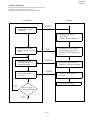
Connection to a computer (Option : FO-47IF)
Note: This function is available as an option. If you wish to use
it, consult your dealer to have the PC interface board installed.
6
Note: The fax machine is set for touch-tone dialing. If you are on a
pulse dial (rotary) line, you must set the fax machine for pulse dialing
by changing Option Setting 22.
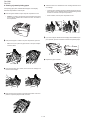
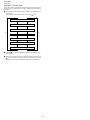
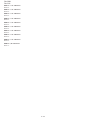
If desired, you can connect the fax machine to the parallel port of
any compatible computer. Once you have installed the provided
printer software in your computer, you will be able to use the fax
machine as a laser printer for your computer.
Important! Use only the provided IEEE P1284 parallel cable to
connect the fax machine to your computer.
1–7