1
AVIDdirector-M2M™ Technical Reference Guide
Appendix 7 – Upgrading the M2M Java Firmware
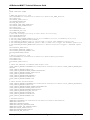
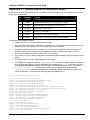
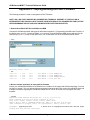
Locate the CD included in the SDK, and then locate the directory “SNAPDev_Files” which contains the files
needed to reload the device. You may also download the files from the AVIDdirector web site where you will find
the latest firmware update. The zip file contains three files with a .snp extension.
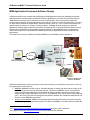
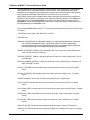
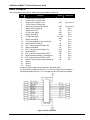
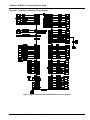
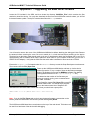
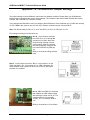
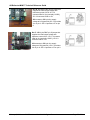
You will need to remove the cover of the AVIDdirector-M2M device before attaching the debug pod. Note Remove
the antenna before removing the cover. Be sure to match pin 1 on both devices before powering up the device.
The black line on the ribbon cable should match to pin one on both boards. Attach the Developer pod to your PC for
reprogramming with a standard serial cable. Attach the serial cable to your computer COM Port (you can use a
USB to RS-232 adapter). Verify that the COM Port the serial cable is attached to has a baud rate of 57600.
Execute the SnapDev.exe file located under the SNAP/bin directory to start the Snap Development environment.
Then connect with the File | Open Port
Power up the AVIDdirector-M2M device and boot up. As the device
starts up press the "i" key a couple of times as the startup messages
begin to be displayed to prevent the M2MApp software from starting
(this bypasses execution of the /system/startup.ini file)
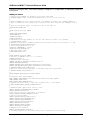
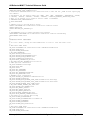
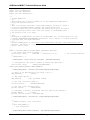
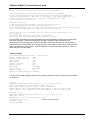
To determine what version of the firmware your
device is currently running, once connected enter
the “info” command.
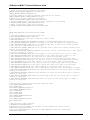
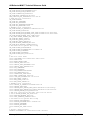
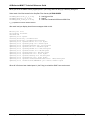
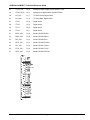
From SnapDev choose File | Reset F5 or press F5
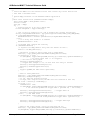
to enter loader mode. You should see a progress
bar on the bottom status line of SnapDev as it
downloads the initial boot loader. When that is done you should see a prompt like:
SNAP loader v 0.1.10 (Build date: Oct 17 2004 01:03:31)
$
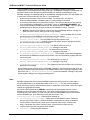
Reset Button
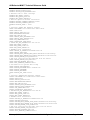
Note: If you do the File | Reset and you don't see the status line start a process bar on the
bottom, press the reset button on the board just after starting File | Reset.
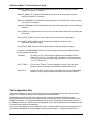
The AVIDdirector-M2M board has a reset button on the top of the main board. This button can
be used for a hard reset of the device while debugging.
February 5, 2009
©AVIDwireless 2004-2009 All Rights Reserved
Page 46 of 55