1
se tting up your wireless e-mail
Bell SMTP E-mail Support is an outgoing mail server service that allows you to receive
and reply to you POP3 e-mails on your wireless device. All you have to do is configure
the mail client of your device to the Bell outgoing mail server configuration –
mail.1Xbell.ca Now you can send e-mail from your mobile handheld device without
having to change your current e-mail address. Your incoming server configuration
remains unchanged with your normal ISP settings.
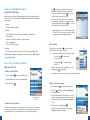
3. Enter “Your name”, (what you want to call this account),
your “User name” (e.g. if it is a Sympatico account – it
will be your complete e-mail address, and “Password”
(associated with your e-mail address) then tap Next.
John Smith
tip: May be case sensitive. Save time by saving
your password.
The bottom line? SMTP E-mail Support service turns your Bell wireless device into an
easy-to-use e-mail solution.
Note: The ISP or network must use a POP3 or IMAP4 e-mail server and
an SMTP gateway.
You can use multiple e-mail services to receive your messages. For each e-mail service
you intend to use, first set up and name the e-mail service. If you use the same service to
connect to different mailboxes, set up and name each mailbox connection.
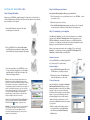
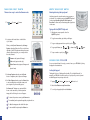
4. From Account Type drop down menu select POP3.
Under Name POP3 will default. Tap Next.
Note: IMAP is not supported by Bell’s Outgoing Mail
server. Please refer to your ISP provider for your
POP3 server address.
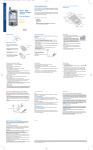
To set up your POP3 or IMAP4 E-mail Account
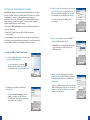
1. Go to Start and select Messaging on your device, tap
Accounts, and then New Account.
tip : For an explanation of a screen, tap
and then Help. When finished, to connect to
your e-mail server, tap Services and then Connect.
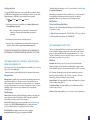
5. Enter your e-mail provider’s server name information
for Incoming mail (your ISP will be able to provide this).
In the field Outgoing mail enter : mail.1Xbell.ca and
then tap Finish.
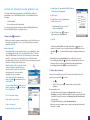
2. Complete your e-mail address in the field and
then tap Next.
To access your POP3 e-mail after successful set up of the
SMTP E-mail Relay service, simply tap on Start and then
select Inbox. Tap on the Send/Receive icon on the tool
bar and you are ready to start.
Next will initiate Auto-configuration – which
attempts to connect your Pocket PC Phone to
your e-mail server. Please tap on the Next button
and manually enter your settings.
8
9