1
Getting Started
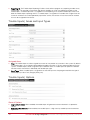
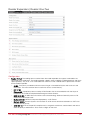
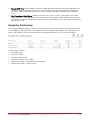
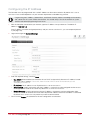
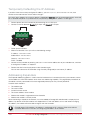
This section outlines the process for logging in for the first time and walks you through the Protege WX
Configuration Wizard.
Logging In for the First Time
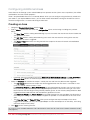
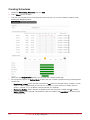
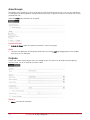
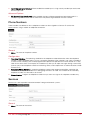
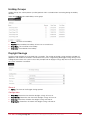
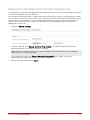
1. Open a web browser and enter the IP address 192.168.1.2
The Login window is displayed.
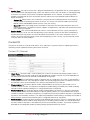
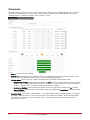
2. Enter the default operator login of admin with the password admin. For security reasons, this password
should be changed (see page 104) before deployment.
3. Click Login.
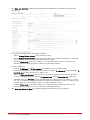
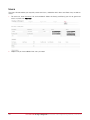
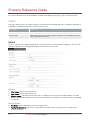
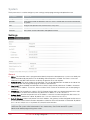
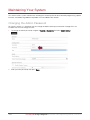
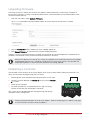
Set the Controller Time
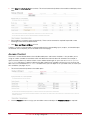
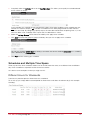
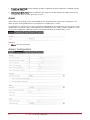
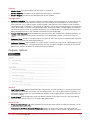
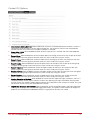
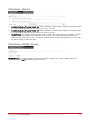
1. Navigate to Scheduling | Time
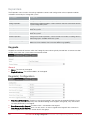
2. Click Use PC Time and Date to set the current date and time to that of your PC then click Save.
The time is reset and you'll be prompted to login again before you can continue.
PRT-WX-DIN Using Protege WX Installation and Programming Manual | June 2013
21