1
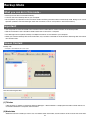
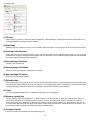
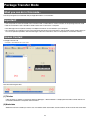
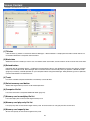
(3) Reload button
Click to refresh the “(5) Computer file list” with the newest information. Note that in the package transfer mode, Data
Manager does not refresh the list automatically when you perform a user data file folder (page 27) operation on your
computer without using Data Manager. After performing such an operation, click the reload button to refresh the list.
(4) Trash
Use trash to delete package files.
(5) Computer file list
Lists package files stored in the computer user data folder (page 27).
(6) Instrument image
Shows the currently connected Instrument model.
(7) Send package file button
Select a package file in the “(5) Computer file list” and then click this button to transfer the files inside the package file to the
Instrument.
(8) All process progress bar
Shows how many files have been transferred out of the total number of files registered in the package file. This progress bar
is displayed only while a transfer process is being performed.
(9) Individual process progress bar
Shows the progress of the current transfer process. This bar shows the transfer status of each individual file within the
package file. It does not show the overall progress of package file transfer. This progress bar is displayed only while a
transfer process is being performed.
(10) Transfer cancel button
Cancels an ongoing package file transfer operation. This button is displayed only while a transfer process is being
performed.
Using the Package Transfer Mode
Transferring from a Computer to the Instrument
There are two different methods that can be used to transfer a package file from your computer to the Instrument.
■ Drag and Drop Transfer
1. In the “(5) Computer file list”, find the package file you want to transfer to the Instrument.
2. Drop the package file onto the “(6) Instrument image”.
3. In response to the confirmation dialog box that appears, click the [Yes] button.
20