1
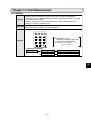
Color Positional Measurement
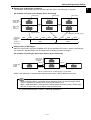
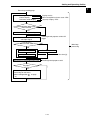
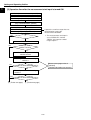
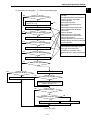
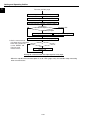
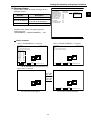
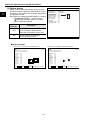
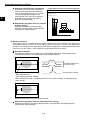
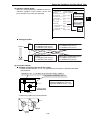
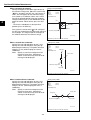
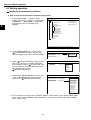
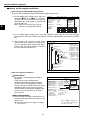
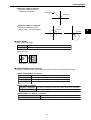
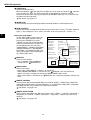
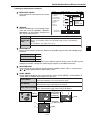
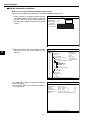
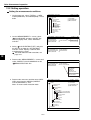
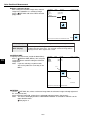
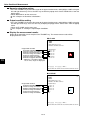
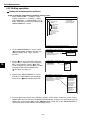
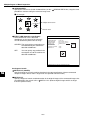
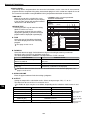
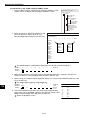
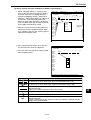
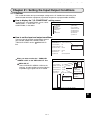
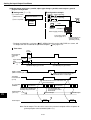
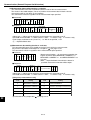
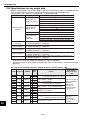
How to set the register conditions
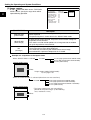
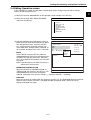
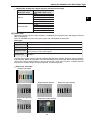
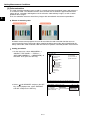
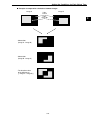
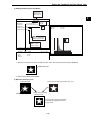
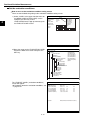
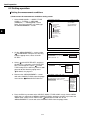
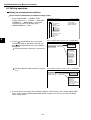
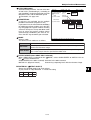
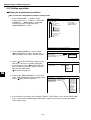
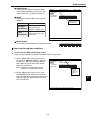
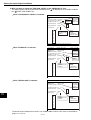
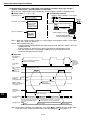
How to enter the REG-COND setting screen
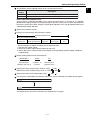
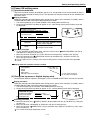
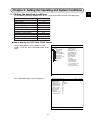
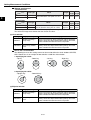
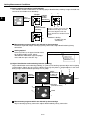
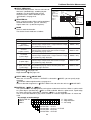
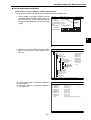
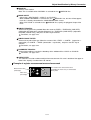
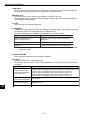
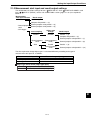
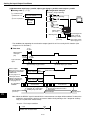
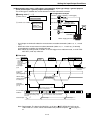
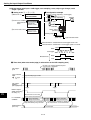
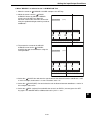
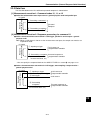
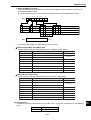
There are three methods for getting to the REG-COND setting screen.
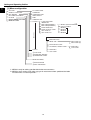
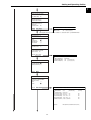
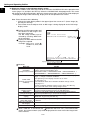
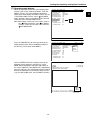
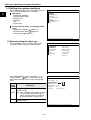
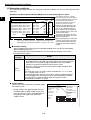
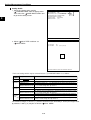
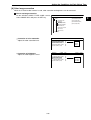
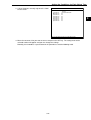
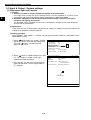
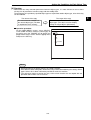
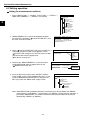
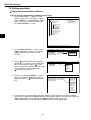
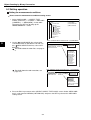
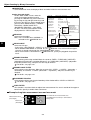
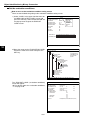
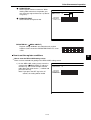
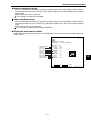
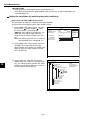
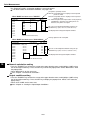
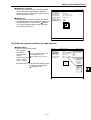
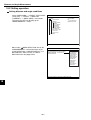
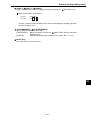
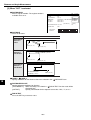
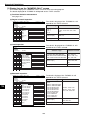
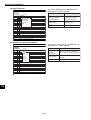
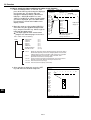
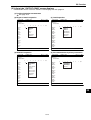
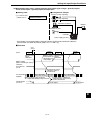
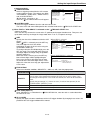
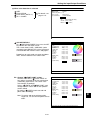
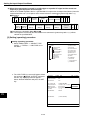
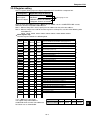
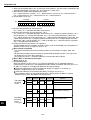
1) On the "MEAS CND" setting screen, move
the cursor to " MDL 0" or " MDL 1" and
press the SET key. The cursor will move into
the table. Move the cursor to the "S" or "E"
column and press the SET key.
Note: If you press the SET key in the "X"
column, the setting will be invalid.
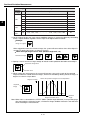
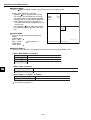
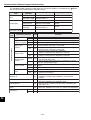
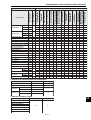
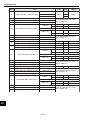
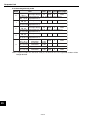
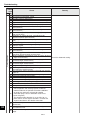
MEA-CND
SCREEN COND SAVE
1REGISTER NO.
2MODE
00 (0∼7)
1P-SCH+1P-EDGE
REGISTER NO.
3MODL 0
4MODL 1
EXTRACT COLOR
0001020304 05 060708 09 10 11 12131415
S S ××××××
E S ××××××
××××××××
COLOR F C1 BRT
REG-COND (S)
REG-COND (E)
EVALUATION
NUM-CALC
OUT
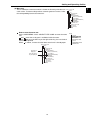
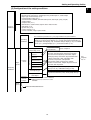
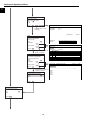
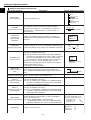
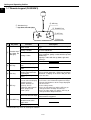
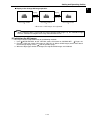
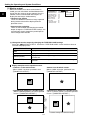
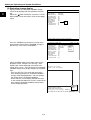
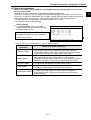
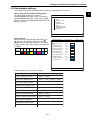
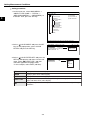
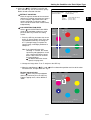
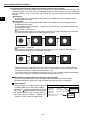
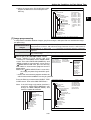
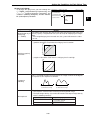
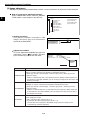
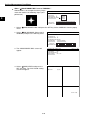
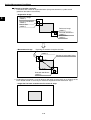
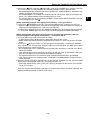
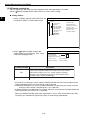
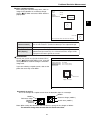
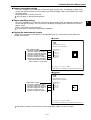
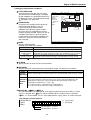
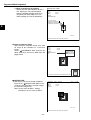
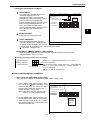
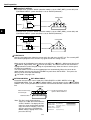
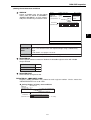
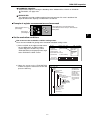
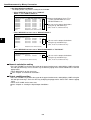
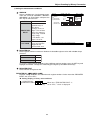
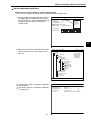
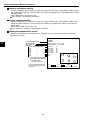
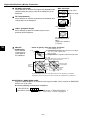
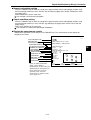
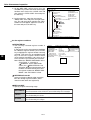
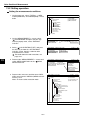
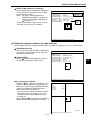
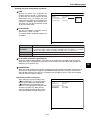
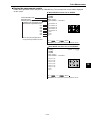
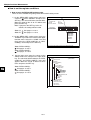
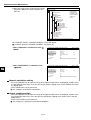
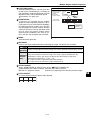
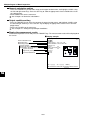
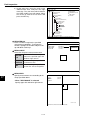
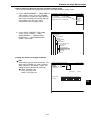
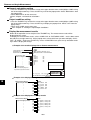
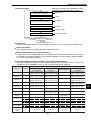
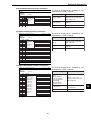
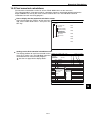
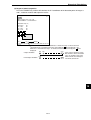
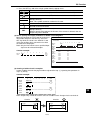
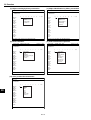
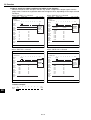
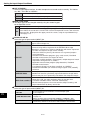
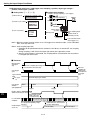
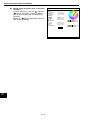
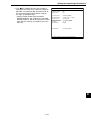
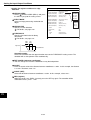
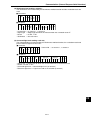
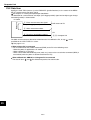
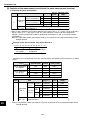
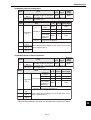
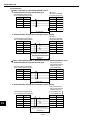
2) On the "MEAS CND" setting screen, press
the TRG/BRT key to move the cursor to the
upper function menu. Select the "COND" item
and then select the "REG-COND(S)" or
"REG-COND(E)" item and press the SET
key.
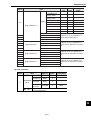
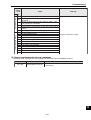
SET=VALUE INPUT ESC=BACK SEL=CHNG IMG TRG=FUNC
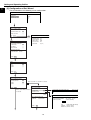
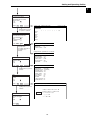
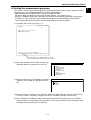
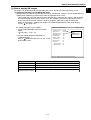
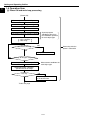
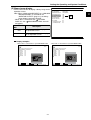
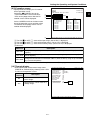
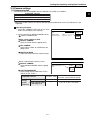
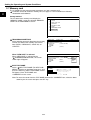
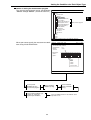
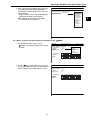
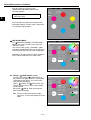
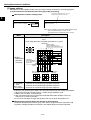
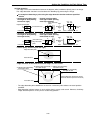
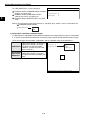
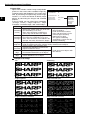
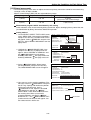
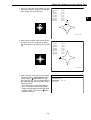
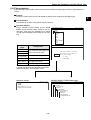
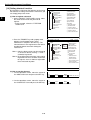
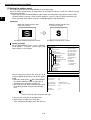
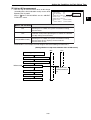
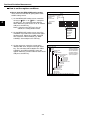
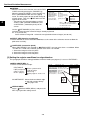
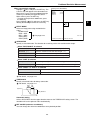
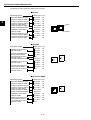
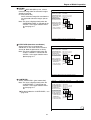
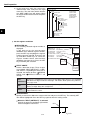
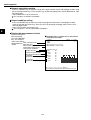
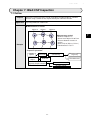
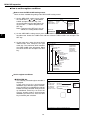
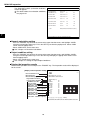
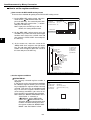
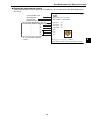
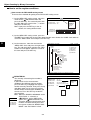
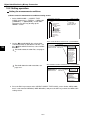
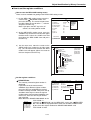
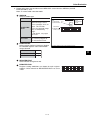
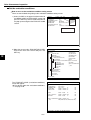
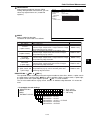
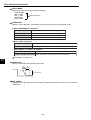
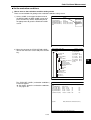
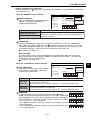
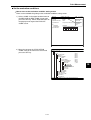
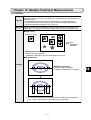
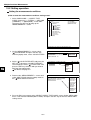
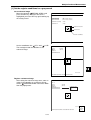
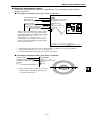
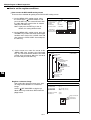
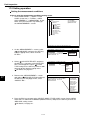
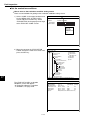
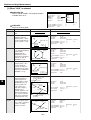
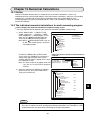
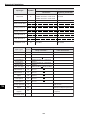
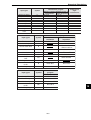
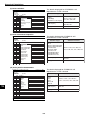
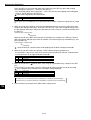
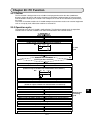
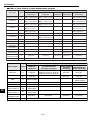
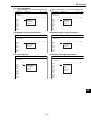
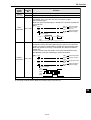
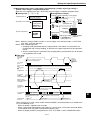
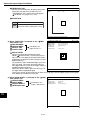
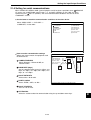
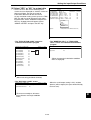
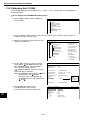
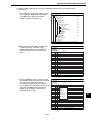
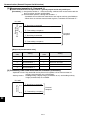
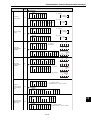
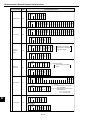
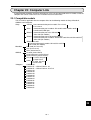
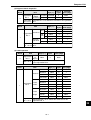
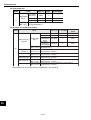
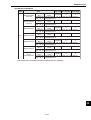
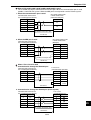
3) On the menu tree, move the cursor to the
"MEAS CND" item, and press the right arrow
key. The sub menu which contains the "REGCOND(S)" and "REG-COND(E)" items will
appear. Move the cursor either of them and
press the SET key.
13
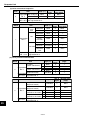
SELECT OBJECT TYPE COND
COLOR F
SET=TO NEXT SUB-MENU ESC=BACK SEL=CHNG IMG TRG=POPUP
13-4
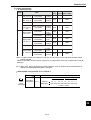
C1 BRT
OBJECT TYPE COND
TYPE00
1REGISTER NO.
TYPE RUN COND
2COLOR DETECT
IMAGE-ADJ
3MEAS SHAPE (MDL 0)
MEA-CND(CAMERA1)
4REFIMG ARE (MDL 0)
MEAS0
5SEARCH ARE (MDL 0)
POSI-CORRECT
6REFIMG(MDL 0)
MEAS01 (MEAS-CAM-POSI P)
7DTECT CRD(MDL 0)
MEAS CND
REG-COND (S)
REG-COND (E)
EVALUATION COND
+ DISTANCE&ANGLE COND
NUM-CALC
OUT-COND
+ MEAS02 (COLOR EVALUATION P)
MEAS(NEW)
+ MEA-CND(CAMERA2)
FINAL NUM. CALC
FINAL OUTPUT COND