1
3
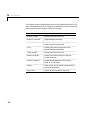
Categories of ActiveX Controls
Task (Continued)
Description (Continued)
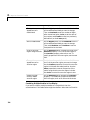
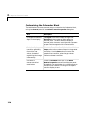
Change the
appearance of a
needle label
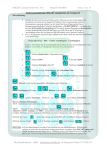
On the Digital panel, first set NeedleID to the ID
of the needle whose label you want to change.
Then use Decimals to set the number of digits
after the decimal point, Color to set the color of
the number, and FontID to refer to a previously
defined font (on the Fonts panel).
Move a needle label
On the Digital panel, first set NeedleID to the ID
of the needle whose label you want to change.
Then use X Position and Y Position to set the
fixed position for the label.
Draw an annular
region along the scale
On the Annulars panel, increase the value of the
Annulars property. The ID of the new region is
the Annulars property value minus one. To
specify properties of the new region, see the next
task.
Change the
appearance of an
annular region
On the Annulars panel, first set AnnularID to
the ID of the annular region you want to change.
Use the Radius properties to control the annular
region’s thickness and radial position. Use the
Value properties to control the portion of the
scale’s range that the annular region includes.
Use Color to control the annular region’s color.
Delete the most
recently added
annular region
On the Annulars panel, decrease the Annulars
property. This deletes all properties associated
with the region, such as its color and thickness.
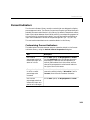
Combining Multiple Needles in One Display
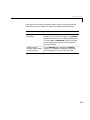
If you want to display multiple needles on a single block, then the
customizations in the table below might be relevant. Note that the Simulink
3-4