1
Introduction
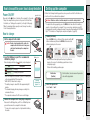
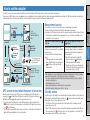
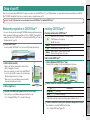
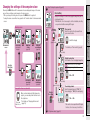
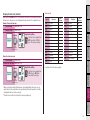
Holding down the MODE button with the measurement screen
displayed resets the measurement data to 0 (resetting operation).
All the measurement data up to that time are generated as trip data.
You can view measurement results and store trip records, by uploading the trip data to the special website “CATEYE Atlas™” via the
dedicated software application “CATEYE Sync™”.
Resetting
operation
MODE
MODE
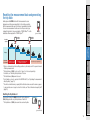
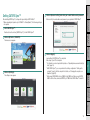
2 day
Trip days
Trip data for the 1st
day are generated.
4 day
Trip data for the 2nd day to the
4th day are generated.
5 day
6 day
Trip data is not yet generated.
Setup of your
PC
Trip data to
be generated
3 day
How to use the
computer
1 day
MODE
(press & hold)
Setting up the
computer
Resetting
operation
Resetting
operation
How to install the
unit on your bicycle
Resetting the measurement data and generating
the trip data
Uploading the measurement data
*A trip is continued unless the resetting operation is performed, even if the power is turned
off during measurement.
*The trip distance-2 (Dst2) is not reset to 0, since it is to be reset separately.
For details, see “Resetting the trip distance-2” below.
*The total distance (Odo) cannot be reset.
*For information on how to upload to the CATEYE Atlas™, see “Uploading the measurement
data (trip data)” (page 13).
*The unit has a limited memory capacity. When the data volume exceeds the memory capacity, any new data can no longer be stored. For details, see “Record interval and capacity limit”
(page 16).
Changing the
computer configuration
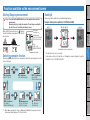
Resetting the trip distance-2
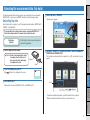
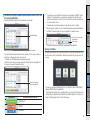
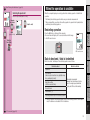
Pressing and holding the MODE button with the trip distance-2
(Dst2) displayed resets only the trip distance-2 data to 0.
*The trip distance-2 (Dst2) value cannot be saved as trip data.
Others
MODE
(press & hold)
10