1
Operating Instructions
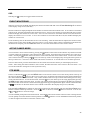
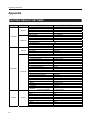
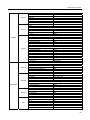
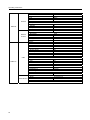
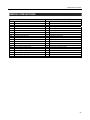
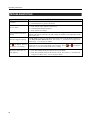
TROUBLESHOOTING
PROBLEM
POSSIBLE SOLUTION
No Power
y Check power cord connections.
y Confirm that there is power at the outlet.
No Live Video
y
y
y
y
No Live Video on the VGA
Monitor
If the DVR does not detect a VGA monitor automatically, press and hold the DISPLAY
button on the remote control for 5 seconds or longer to switch the video output from Video
out to VGA out.
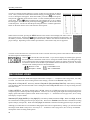
DVR has stopped recording.
If hard disk drive is full, you will either need to delete video or set the DVR to the Recycle
On (Recycle When Disk Full) Mode. See Chapter 2 – Installation & Configuration,
Main Setup – Record Setup for details.
The icon displays, however,
the DVR is not recording.
When the DVR is in the Pre-Event recording mode, the yellow
when there is no event, and the DVR is not recording. The red
when any event occurs and the DVR starts recording.
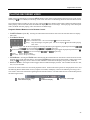
IR remote control does not
work properly.
Check camera video cable and connections.
Check monitor video cable and connections.
Confirm that the camera has power.
Check camera lens settings.
icons display
icons display
y Check the batteries in the remote control.
y Check that nothing blocks the infrared sensor on the DVR.
y Check the system ID setting for the remote control. See Chapter 2 – Installation &
Configuration, Main Setup – System Setup for details.
56
and
and