1
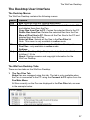
The WizCom Desktop
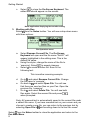
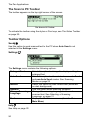
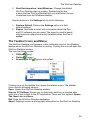
3. Start Desktop when I start Windows: Change the default
WizCom Desktop start-up setting. Deselecting the box
means that the WizCom Desktop will only start when its icon
is selected from the Windows desktop.
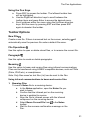
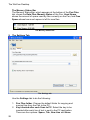
Use the buttons in the Settings tab to do the following:
1. Restore Default: Restore the Settings options to their
default settings.
2. Report: Generate a report with information about the Pen
and PC software you are using. The report is used to assist
with technical support and is only available when the Pen is
online.
The Taskbar Icons and Menu
The WizCom Desktop icon appears in the notification area of the Windows
taskbar when the WizCom Desktop is running. Clicking the icon will open the
WizCom Desktop window.
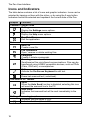
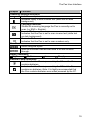
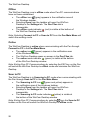
The icon has three modes:
(gray)
• Offline
(green)
• Online
(green and yellow)
• Scanning to PC
The taskbar menu
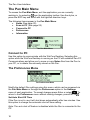
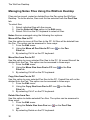
Clicking once on the taskbar icon opens the taskbar menu. The taskbar
menu has the following options:
Open: Opens the WizCom Desktop window.
Scan to PC Settings: Allows you to determine what key is inserted after
each line of text is sent to the PC application. There are four options: Space,
Tab, New Line and None.
Exit: Exits the WizCom Desktop application.
About: Displays version and copyright information for the WizCom Desktop.
29