1
Setting the Print Quality Level (Custom)
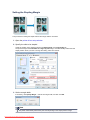
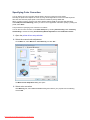
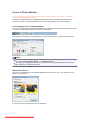
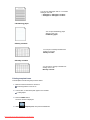
The print quality level can be set in the Custom.
The procedure for setting the print quality level is as follows:
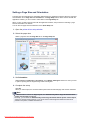
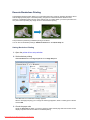
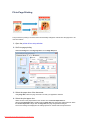
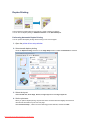
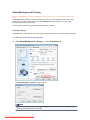
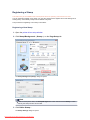
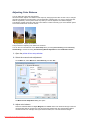
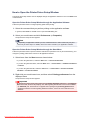
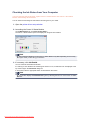
1. Open the printer driver setup window
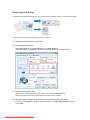
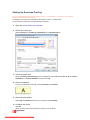
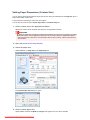
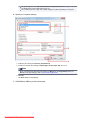
2. Select the print quality
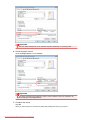
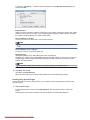
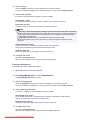
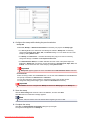
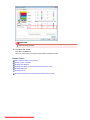
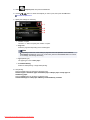
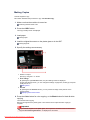
On the Main tab, select Custom for Print Quality, and click Set....
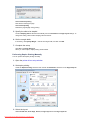
The Custom dialog box opens.
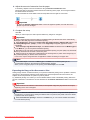
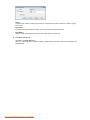
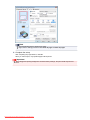
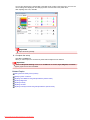
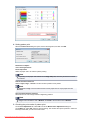
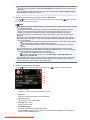
3. Setting the print quality level
Drag the slider bar to select the print quality level and click OK.
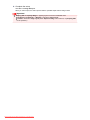
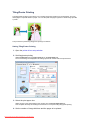
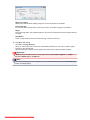
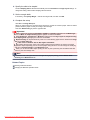
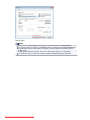
4. Complete the setup
Click OK on the Main tab.
When you execute print, the image data is printed with the selected print quality level.
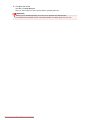
Important
Certain print quality levels cannot be selected depending on the settings of Media Type.
Related Topics
Specifying Color Correction
Downloaded from ManualsPrinter.com Manuals