1
Importing and Exporting Switch Configuration Files
Importing and Exporting Switch Configuration Files
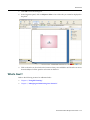
You can import or export switch configuration files in Extensible Markup Language (XML) format. •
The import option enables you to create a RoamAbout Switch in the network plan by importing configuration files in Extensible Markup Language (XML) format. You also can update the configuration of a switch that is already in the plan.
•
The export option enables you to save a switch’s configuration to an XML file. After exporting a RoamAbout Switch configuration to an XML file, you can import it to another instance of RASM or use it as a backup copy.
If you import a configuration containing information that an older version of RASM or MSS does not support, the information is ignored when the configuration is imported.
If you import a switch configuration, you must enable RASM management of the switch before you can deploy the switch to the network. (To enable RASM management of a switch, select the switch in the Organizer panel, select Managed, then click Save.)
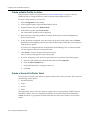
Importing a Configuration
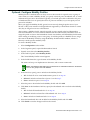
To import a configuration:
1.
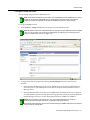
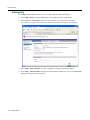
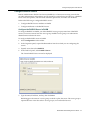
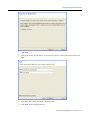
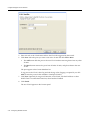
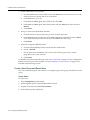
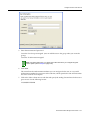
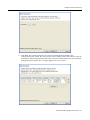
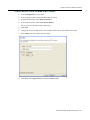
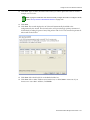
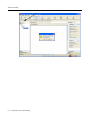
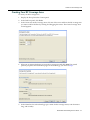
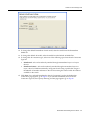
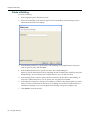
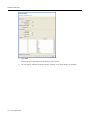
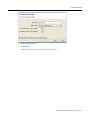
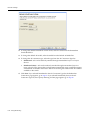
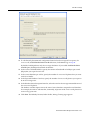
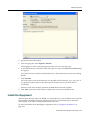
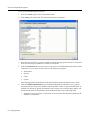
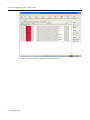
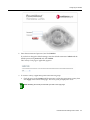
Select Tools > Import in the main RASM window. The Import Configurations dialog box appears.
2.
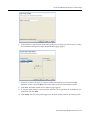
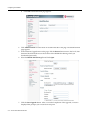
In the Import Into Mobility Domain group box, select one of the following options:
•
Click Use File Info to import the configuration information using the Mobility Domain specified in the configuration file. •
Click Select to specify a Mobility Domain to import configuration information to. Then select the Mobility Domain from the list. 3.
To replace existing RoamAbout Switch information in RASM with information from the configuration file, select Update existing RBT Switchs.
4.
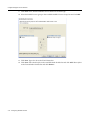
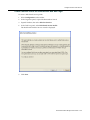
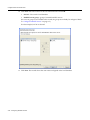
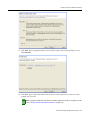
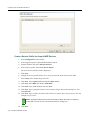
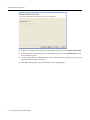
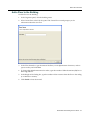
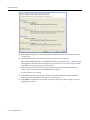
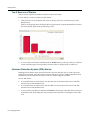
Click Select Files. The Select Files To Import dialog box appears. 5.
Select one or more configuration files to be imported. To make multiple selections, click on and hold the Shift key (for contiguous items) or Control (for noncontiguous items) while clicking items.
6.
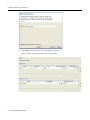
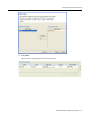
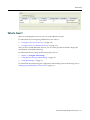
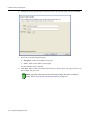
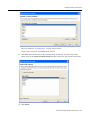
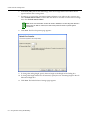
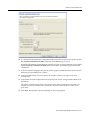
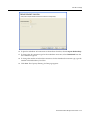
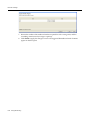
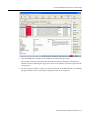
Click Select Files To Import. The file or files you selected appear in the File Import Results list. Click Clear Files to remove all the files you previously selected. 7.
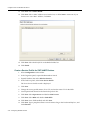
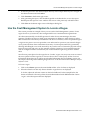
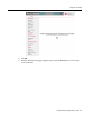
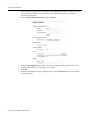
Click Import. The status of the import process appears in the Status column. 8.
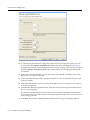
Click Close to save the changes.
9.
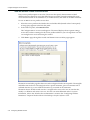
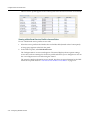
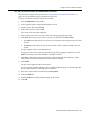
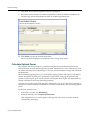
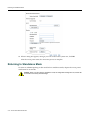
Enable RASM to manage the switch.
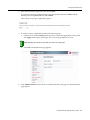
Select the switch in the Organizer panel, select Managed, then click Save.
7-10
Managing and Monitoring Your Network