1
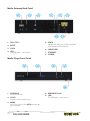
• Check to see if your Media Gateway is connected to the WOW! network. Look at your Media
Gateway and confirm that the lights are correct per the table above.
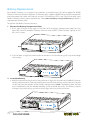
• If you checked the connections and you are still experiencing problems, press and release
the Reset button to reboot the Media Gateway.
Frequently Asked Questions
What if my Internet connection is not working?
If none of your WOW! services are working, there may be a cable outage in your area. Call
WOW! at 1-866-4WOW-NOW (1-866-496-9669). If you’re WOW! Cable is working but WOW!
Internet is not, proceed with the troubleshooting steps below.
What should I do if my cable TV is working but I don’t have Internet connection or dial tone?
Reset your Media Gateway by pressing and releasing the reset button once. Be careful not to
hold the button down for more than ten seconds as that will cause your router to reset to
factory defaults, eliminating any home network configurations you may have set.
What if I reset my Media Gateway I still don’t have dial tone?
If you have reset the Media Gateway and still don’t have dial tone, check the status of the
lights on the front of the Gateway. The Telephone 1 line (and / or Telephone 2 for a second line)
light should be solid if the phone is on the hook. If the Telephone light is blinking, check all of
your phones to see if one is off hook.
Wireless Network Configuration
When your installer leaves your home after setting up your Ultra TV, your network will be
configured and functional.
There are a few settings that you may want to alter at some point in the future that are
accessible from the Gateway’s eRouter website at http://192.168.0.1
The default user name to log in to the website is Admin. Your installer should leave you with
information about the login password.
You may, at some point, want to change the following settings:
SSID: The default SSID for your router is taken from the Media Gateway serial number on the bottom
of the Gateway. You have the option to change the SSID to a more friendly, recognizable name.
Passphrase: The passphrase for your wireless network is printed on the label on the bottom
of your Media Gateway. You may want to change this passphrase initially to something more
secure. In addition, you may want to change it periodically to maintain security levels.
RF Channel: If you’re experiencing interference from a neighbor’s wireless network, for
example, try changing the RF channel frequency.
If, at any point, you forgot your SSID or passphrase and need to access them to add additional
devices to your network, you can use the reset button to reset the router to default settings.
See the previous section for details.
Connecting Devices to Your Network
If you are using a wireless network, you will need to enter the SSID and passphrase to connect
additional devices. Each device that you connect should have instructions on where to enter
this information. For more information on WOW! Home Networking, see the Internet chapter.
MEDIA GATEWAY HARDWARE
E-7