1
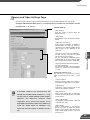
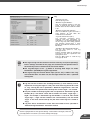
Panorama Creation Tool Display Screen
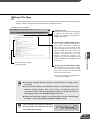
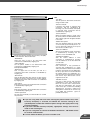
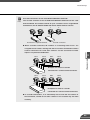
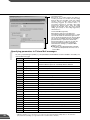
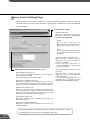
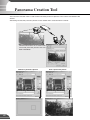
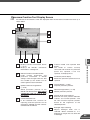
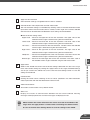
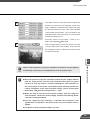
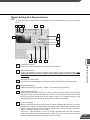
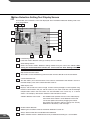
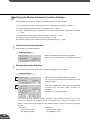
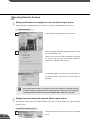
An overview of the functions of the GUI displayed when the Panorama Creation Tool starts up is
shown below.
2
3
1
4
5
6
10
9
8
7
Display Connect Information button
(→ P.71)
Displays the VB150’s connection
information in a dialog box.
2
Reload Camera Information button
Loads camera information and
panorama information. If VB150
settings were changed after this tool
was started up, this button can be
used to get the latest information.
3
4
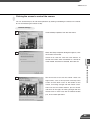
Update Panorama Image button
(→ P.70)
Sends panorama pictures to the
VB150 and reloads them. After taking
a panorama shot, be sure to click
this button.
5
6
Camera model and captured date
display
The model of camera currently
connected and the date the panorama
picture was captured, if one was
captured, are displayed here.
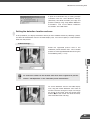
Panorama picture display
Shows the panorama picture that was
captured.
7
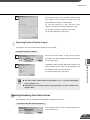
Capture button (→ P.69)
Captures panorama pictures.
8
Remove image button (→ P.70)
Deletes panorama pictures.
9
Camera Selection box
In this selection box, cameras for
capturing panorama pictures can be
changed or selected from the cameras
connected to the VB150.
10
VB Administration Tools
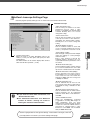
1
4
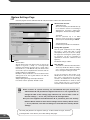
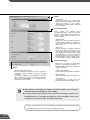
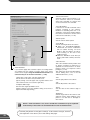
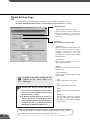
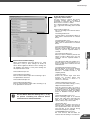
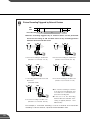
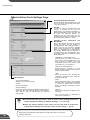
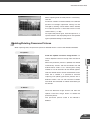
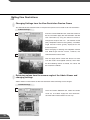
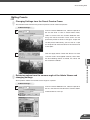
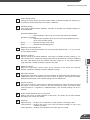
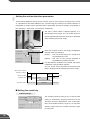
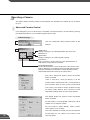
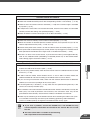
Position of AE Lock switching
Switches AE lock position between
“Center” and “Current position”. The
AE Lock function captures pictures
based on the brightness of the
selected position.
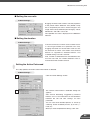
Backlight adjust switching
Adjusts backlight when “On” is
selected. When switched on, it is
effective on images that are dark due
to backlight.
68