1
Chapter 4 Handling
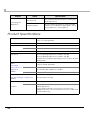
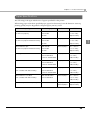
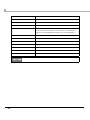
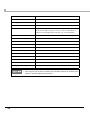
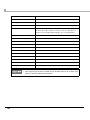
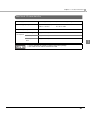
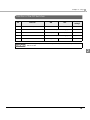
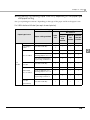
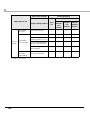
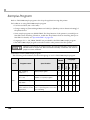
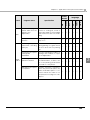
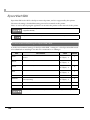
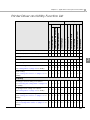
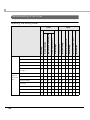
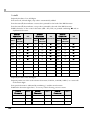
*1 :
*
2:
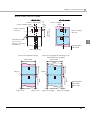
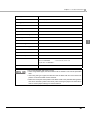
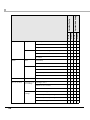
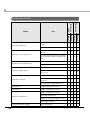
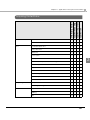
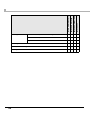
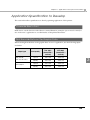
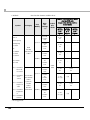
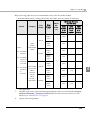
The values for the Rotation Settings in the table are those when [Orientation] in [Page
Layout] tab is se to “Portrait.” When it is set to “Landscape,” the description is changed as
below.
"Normal, Rotate 180 Degrees"
➔ “Rotate 90 Degrees, Rotate 270 Degrees"
"Rotate 90 Degrees, Rotate 270 Degrees"
➔ "Normal, Rotate 180 Degrees"
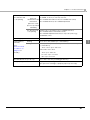
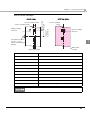
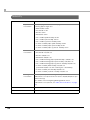
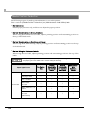
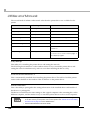
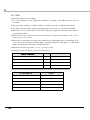
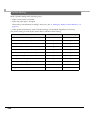
By the combination of the specific paper type and the Symbol, the following conditions are
available.
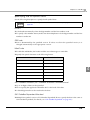
Wrist Band & Code128
: Element = 5 dots (D-grade)
Wrist Band & Codabar
: Element = 5 dots,
Element ratio = 2.5 (C-grade)
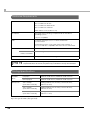
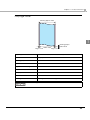
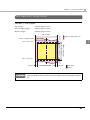
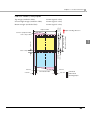
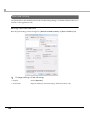
When “Module” is set to an odd number and the resolution is changed by changing [Category] or [Print Quality], the printed barcode size may be changed. The barcode size can be
checked by [Size Display] button.
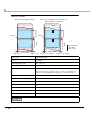
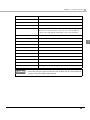
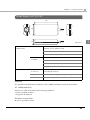
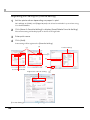
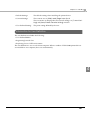
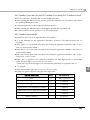
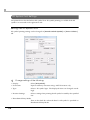
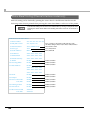
• Bar Height:
Sets the element height with dots. Specified dots indicate the actual
print size.
• Adjust Bar Width:
Narrows the element width when printing. Make sure to select it
only when the barcode is not clear enough to be read.
• HRI Character Position: Select the position of the HRI characters. Select [Do Not Print] when
not printing.
The printing position is limited for some types.
• HRI Font:
Select the HRI character font size.
• Element Ratio:
Sets the thick element width by the ratio to the thin element width.
• Character Spacing:
Sets the character spacing (interval) by the ratio to the thin element
width.
2
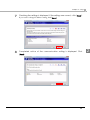
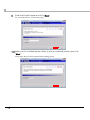
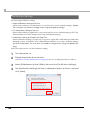
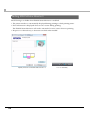
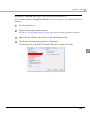
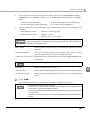
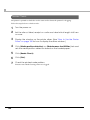
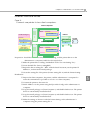
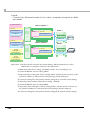
Click [Add].
The selected barcode font is saved and the font name is added to the font list.
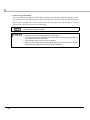
• The barcode font can be registered up to 30.
• The barcode font setting can be overwritten by clicking [Save] after selecting the font
name from the font list and changing the setting.
• The barcode font setting can be deleted by clicking [Delete] after selecting the font name
from the font list.
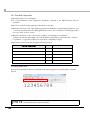
• Test print is executed according to the setting by clicking [Print] after inputting the text in
the box.
161
4