1
Chapter 3 – Software
Line Interfaces > Line 1 Setup > T1 PRI
Line Interfaces > Line x Setup > T1 PRI
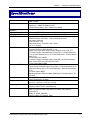
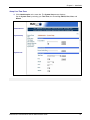
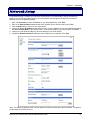
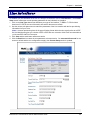
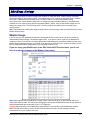
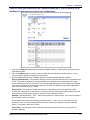
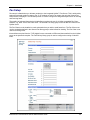
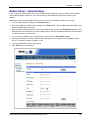
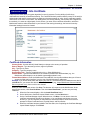
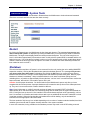
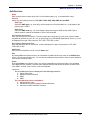
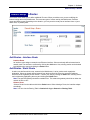
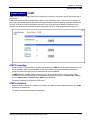
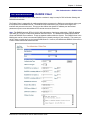
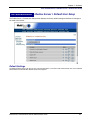
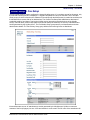
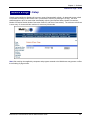
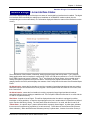
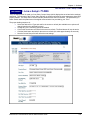
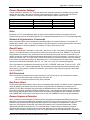
The Line Setup screen is made up of two fields, Current Setup (which displays the saved, active, settings) and
Setup. The contents of the Current Setup field will not change until after the setup parameters have been
properly loaded. The Setup field is used to load the parameters into the line interface. The parameters you
select should match the parameters of the digital communication line provided by Telco.
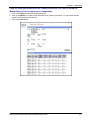
The proper loading sequence is:
• Select the desired Line Type and wait for the screen to refresh (the available menu options will
change based on the selected line type).
• Change any of the remaining options as needed.
• Click on the Save button and wait for the screen to refresh (the Send button will now be active).
• Click the Send button and wait for the screen to refresh (this takes approximately 45 seconds).
• Now the Current Setup field will reflect the new settings.
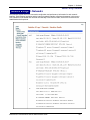
Line Type
Three selections are available, T1-RBS, T1-PRI and E1-PRI. Units leave the factory set to E1-PRI. Line
Interfaces that are activated in the field (when an MA30EXP port expansion module is installed) will default to
T1-RBS. Whenever the line type setting is changed form E1-PRI to a T1 choice (or from a T1 choice to E1PRI), after saving and sending the configuration change, the unit MUST be restarted. However, changing from
T1-RBS to T1-PRI or changing any other parameter (for example the Framing Format or the Line Build Out)
does NOT require a system reboot.
MultiAccess Communications Server MA30120User Guide
123