1
QWERTY:
Place the cursor arrow on the icon itself - click on
it and see the NODE INFORMATION dialog box for
that item. Each device in the Network is
technically called a 'Node'. There are three main
graphic views you should become familiar with:
AUDIO, MIDI, and WORDCLOCK. There are icons
for each one on the tool bar.
•
•
•
How connections are made and broken
•
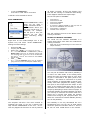
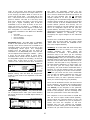
Select the AUDIO graphic view…you can click on the
Audio icon in the toolbar or you can use your
QWERTY keyboard: CTRL + 7
This will prep 18 Cables to
be plugged in. Always route
OUTPUT to INPUT. The
graphic will show 18 cables
ready to be connected.
Audio view
computer
mLAN16
01X
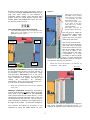
Next we will connect them:
Click on the word IN on the
01X node. The 18 possible
inputs will be shown. If you
click on the empty space to
the right of cable 1, the
Graphic Patchbay will make
a connection. It is only
necessary to select a single
input – we have selected 18
outputs so it will automatically look for 18 inputs
in to which to connect our selection.
i88X
•
Breaking a connection: Place the cursor arrow
on the connecting line that runs from the 01X to
the computer, it will turn into cross hairs... Right
Click and select DISCONNECT ALL or any one of
the connections as necessary. If you break a
single connection the graphic will adjust and
redraw
the
connections
as
necessary.
Alternatively, when you need to disconnect all –
you can click on it and press DELETE.
•
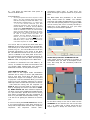
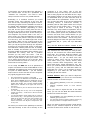
Click on the word “OUT” of
the NODE you are sending
from (yellow arrow at left)
– the computer. The long
OUT cable list opens
Click on the empty space
to the right of the first
cable jack to be routed.
(red arrow above)
Hold SHIFT and click on
the last cable to be routed.
Simply click next to IN number 1 to make the 18
connections – shown below:
Click here
in the space
Break the connection that runs from the computer
to the 01X.
Making a connection: Connections are made by
routing signal OUTPUT to INPUT (follow the signal
flow). Click on the word OUT on the COMPUTER
node (shown below by the yellow arrow) – a box
showing the potential OUTS will open. There are
18 OUTPUTS from the computer. You can select a
single connector by clicking in the empty space to
the right of the number – a small jack will appear.
Although only a single line appears to connect the
OUT of the computer to the IN of the 01X – it
contains all eighteen audio connectors (much like
Let’s connect 18 outputs to 18 inputs in one
operation by using the SHIFT button on your
4