1
QSG-PN2050-3000.book Seite 42 Montag, 23. Oktober 2006 3:09 15
Navigation
42
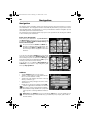
Confirmation
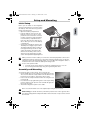
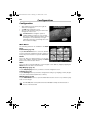
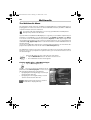
When you have entered the destination, all elements for the desired destination appear on the
Confirmation screen; the system will confirm your
selection. Additionally you have the possibility to
store the destination: in the Address book or as
shortcuts under Home and Work. You can also adjust the navigation settings (e.g. plan short or fast
route). Tap OK on the screen or wait a moment: the
Map Display screen will automatically appear. The
Map Display screen is displayed and the navigation process starts with spoken and visual instructions.
Every destination is automatically stored in History.
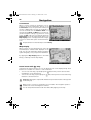
Map Display
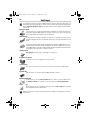
When you have set your destination the route will
automatically be calculated and displayed on the
map. You can now start driving and the navigation
system will guide you to your specified destination.
By tapping the Map Display button in the Main
Menu, you directly enter the map display.
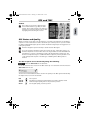
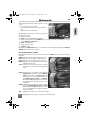
Zoom in/out with the map
Using these two buttons
and
you can adjust the scale of the displayed map. These
buttons are not visible if the automatic scale is activated.
•
To zoom out of the map, repeatedly tap the
magnification to the desired level.
•
To zoom in to the map, repeatedly tap the
nification to the desired level.
button until you have decreased the
button until you have increased the mag-
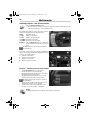
Compass: Tapping the compass will switch the map orientation between facing north
and heading up.
While you are on route you can always set a new address. The navigation system recalculates the route and navigation continues.
You can easily switch back and forth from 2D to 3D by tapping on the map.