1
Transfer & sync contacts
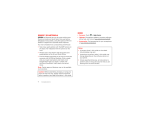
Create contacts
Get all your contacts, all in one place:
Find it: Apps
>
People >
• Use Gmail™
All your Gmail contacts will automatically get synced
to your phone. Various computer applications for
mobile phones and email accounts allow you to
export your contacts as a “.CSV” file. You can then use
Gmail to import the file. For more details, go to
www.motorola.com/transfercontacts or log in to your
Gmail account on your computer and select “Help”.
• More
your.account@gmail.com
Set where contact is saved
(Google, Local, or SIM).
Set a picture.
Set the number type.
Remove a number.
Add another number.
There are other methods and tools to help you at
www.motorola.com/transfercontacts.
Combine contacts
You might have two or more contacts for the same
person, maybe a Gmail contact who is also stored on
your phone, or one friend with two email addresses. To
combine these contacts:
Find it: Apps
>
People
Touch a contact to open it, touch Menu
> Edit >
Menu
> Join, then touch the second contact.
Touch any entry area to open the touchscreen keypad.
When you’re finished, touch Done.
Where are contacts saved? Your phone saves new
contacts in its memory, and syncs them remotely with
your Google™ account. Contacts on the Google Server
Contacts
19