1
Scribe EC Standalone Series
Operator’s Guide
Document Revision: 011804
CD-3706/P Operator’s
Guide
Document Revision: 030501.1
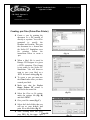
Creating .prn Files (Inkjet Printer)
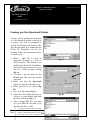
Create a .prn by printing the document
to a file instead of routing it directly to
a printer. You will be prompted to
specify the filename and location. This
puts the document in a format that the
Scribe EC Standalone can use for
printing. Follow the instructions below
to create a .prn.
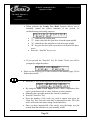
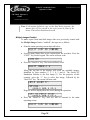
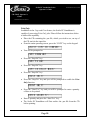
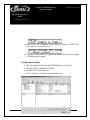
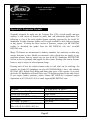
(fig. A)
• When a label file is saved in Sure
Thing it is given a .std extension.
This format is not usable by the
Scribe EC Standalone. You will
however want to save your label as
a .std for future editing (fig. A).
• To create a .prn you must use the
Print feature after you have created
your label.
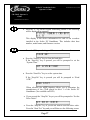
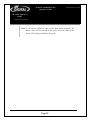
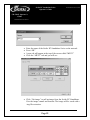
(fig. B)
•
•
•
•
•
Select the Inkjet printer (fig. B)
Click Advanced (fig. B)
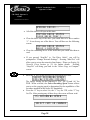
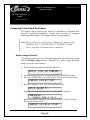
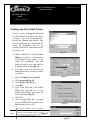
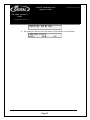
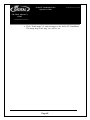
Click Print to file (fig. C)
Click OK
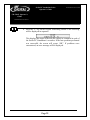
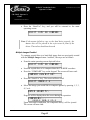
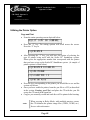
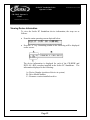
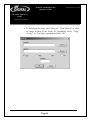
Type in the full path to the Labels
folder that you will use as your
default label folder, and print the
file to this folder (fig. D)
• Click OK
• After creating PRN file, you must
give your PRN file the name 1.prn
and burn this file to a CD.
Note:
A .prn file cannot be edited. It contains
information to create the image, and the
of
settings of the particular printer. If any Page
the settings of the printer are changed, a
new .prn file must be generated.
(fig. C)
47
(fig. D)