1
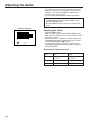
On-Screen Display
IMAGE ADJ.
BLUE SCREEN
BLK SCRN DISP
INPUT DISPLAY
SYSTEM
REVERSE
INVERT
:SEL.
:ADJ.
[ON]
[OFF]
[OFF]
[OFF]
[OFF]
MENU : E N D
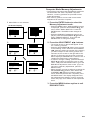
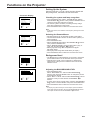
Using the Blue Screen Function
This projector is equipped with a Blue Screen function
that will turn the screen blue when the video input terminal is not connected to anything, or the video component
is turned off.
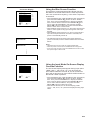
• Press the MENU button. While the MENU screen is displayed,
press the ADJUSTMENT ƒ/∂ buttons to select “IMAGE
ADJ.” Then press the ENTER button to display the IMAGE
ADJ. screen as shown. Press the ADJUSTMENT ƒ/∂ buttons to select “BLUE SCREEN,” and press the ADJUSTMENT ß/© buttons to select ON or OFF. Press the MENU
button to return to the normal screen.
• When the Blue Screen function is on, the screen will turn blue
when no video signal is being input through the video input
terminal.
• When the Blue Screen function is on, and no video signal is
input via the input terminal for more than 15 minutes, the
power is automatically turned off.
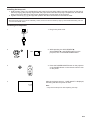
• The indicators appear as shown each minute before the
power is turned off, from five minutes before until one minute
before.
REMAIN 5M
Notes:
• The Blue Screen Function does not operate in RGB mode.
• When the power is turned off, the POWER indicator will light red.
• To turn the power on again, press the POWER button to set it to OFF,
then press it again to set it to ON.
REMAIN 4M
REMAIN 1M
Using the Input Mode On-Screen Display
Override Function
IMAGE ADJ.
BLK SCRN DISP
INPUT DISPLAY
REVERSE
INVERT
:SEL.
:ADJ.
MENU : E N D
[OFF]
[OFF]
[OFF]
[OFF]
The On-Screen Displays that appear during input select
(“RGB 1,024 2 768, 75 Hz,” etc.) can be turned off.
Once INPUT DISPLAY is turned off, the On-Screen Displays will not appear even if the INPUT CHECK button on
the remote control is pressed.
• Press the MENU button. While the MENU screen is displayed,
press the ADJUSTMENT ƒ/∂ buttons to select “IMAGE
ADJ.” Then press the ENTER button to display the IMAGE
ADJ. screen as shown. Press the ADJUSTMENT ƒ/∂ buttons to select “INPUT DISPLAY,” and press ADJUSTMENT ß/© buttons to select ON or OFF.
• When OFF is selected, the On-Screen Display (“RGB
1,024 2 768, 75 Hz,” etc.) will not be displayed during input
select.
E-28