1
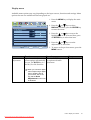
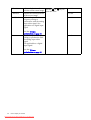
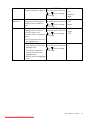
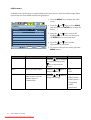
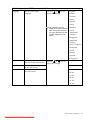
PIP/PBP Source Sets the second video source
Press the
or
keys to
for the PIP/PBP mode.
change the settings.
• VGA
• DVI-D
• HDMI 1
• HDMI 2
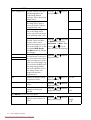
PIP Size
H. Position
V. Position
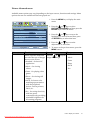
Contrast
Sharpness
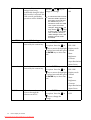
Determines the size of the
inset window in the PIP
mode.
Adjusts the horizontal
position of the inset window
in the PIP mode.
Adjusts the vertical position
of the inset window in the
PIP mode.
Adjusts the contrast of the
inset window in the PIP/PBP
mode.
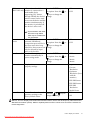
Adjusts the sharpness of the
inset window in the PIP/PBP
mode.
Press the
or
keys to
change the settings.
Press the
or
keys to
change the settings.
• Component
• Small
• Medium
• Large
0 to 100
0 to 100
Press the
or
keys to
change the settings.
0 to 100
1 to 10
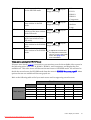
To adjust the contrast and
the sharpness of the main
source, go to the PICTURE
menu. See page 29 for
more information.
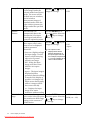
Video source selection in PIP/PBP mode
If Source Auto Search (page 41) is turned on, your monitor scans for the available video sources in
the following order: VGA, DVI-D, HDMI 1, HDMI 2, and Component, and displays the first
available one. This video source will become the main source in PIP/PBP mode. You will need to
decide the second source for PIP/PBP mode from the menu in PIP/PBP Source on page 37. Menu
options that are not available will become grayed out.
Refer to the following table to find your main source and its supporting second sources.
Possible second sources
Inputs
Main source
VGA
DVI-D
HDMI 1
HDMI 2
Component
VGA
V
V
V
DVI-D
HDMI 1
V
V
V
V
V
V
V
V
V
V
HDMI 2 Component
V
V
V
How to adjust your monitor
Downloaded from ManualMonitor.com Manuals
37