1
Using the Scanner
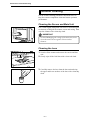
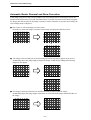
Enlarging and Reducing the Image
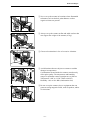
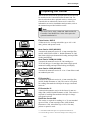
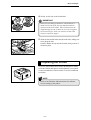
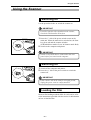
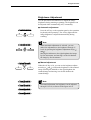
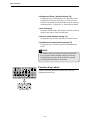
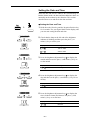
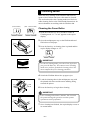
ZOOM key
Control knob
1 Press the ZOOM key.
2 Turn the image adjustment control knob to enlarge or
reduce the image. Turn the knob to the left to enlarge
the image and to the right to reduce it.
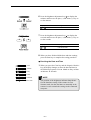
• If you are using the optional operation keyboard, press
the image adjustment selection key until the ZOOM
indicator lights and then turn the image adjustment
control dial left or right to enlarge or reduce the image.
Turn the dial to the left to enlarge the image and to the
right to reduce it.
Note
Zoom ratios can be stored in the preset zoom keys so
that images can subsequently be enlarged or reduced
by the stored ratio at a single touch. (➜ P.28 “Storing
a Zoom Setting”)
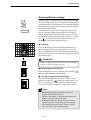
Rotating the Image
● Rotation by any angle
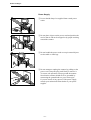
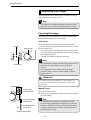
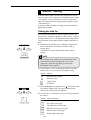
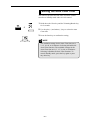
Control knob
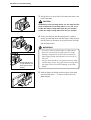
1 Press the ROTATE key.
2 Turn the image adjustment control knob to rotate the
image. Turn the knob to the left to rotate the image to
the left and to the right to rotate it to the right.
ROTATE key
• If you are using the optional operation keyboard, press
the image adjustment selection key until the ROTATE
indicator lights and then turn the image adjustment
control dial left or right. Turn the dial to the left to
rotate the image to the left and to the right to rotate it to
the right.
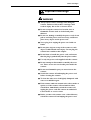
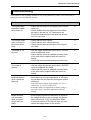
● 90° Rotation
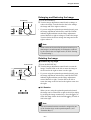
When you are using the optional operation keyboard,
the image can be rotated left or right in 90° steps simply
by pressing the image rotation keys. Press the key to
rotate the image 90° to the left and the key to rotate it
90° to the right.
Note
The 90° rotation function can also be assigned to one
of the function keys on the operation panel. (➜ 27
“Function Keys”)
– 22 –