1
Basic Call Handling
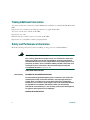
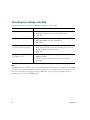
See the “Starting and Joining a Standard Conference” section on page 31 for additional instructions.
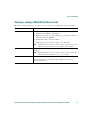
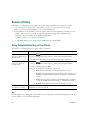
Meet-Me Conference Calls
You can create a Meet-Me conference by calling the Meet-Me phone number at a specified time.
See the “Starting or Joining a Meet-Me Conference Call” section on page 33 for additional
instructions.
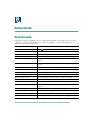
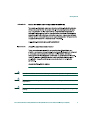
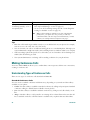
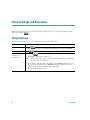
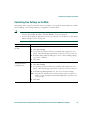
Starting and Joining a Standard Conference
A standard conference allows at least three people to participate in a single call.
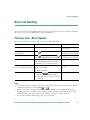
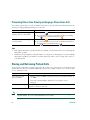
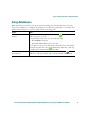
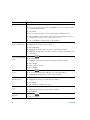
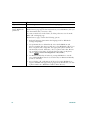
If you want to...
Then...
• Create a conference by
calling participants
1. From a connected call, press Confrn. (You may need to press the
more softkey to see Confrn.)
• Add new participants to
an existing conference
2. Enter the participant’s phone number.
3. Wait for the call to connect.
4. Press Confrn again to add the participant to your call.
5. Repeat to add additional participants.
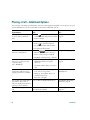
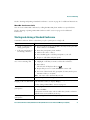
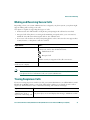
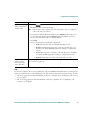
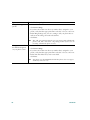
Create a conference by joining
two or more existing calls
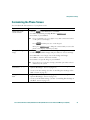
1. Make sure that you have two or more calls on a single line.
2. Highlight a call that you want to add to the conference.
3. Press Select.
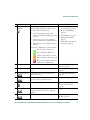
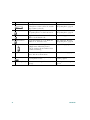
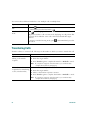
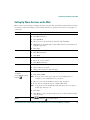
The selected call displays this icon
.
4. Repeat this process for each call that you want to add.
5. From one of the selected calls, press Join. (You may need to press
the more softkey to see Join.)
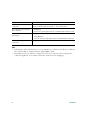
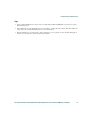
Note
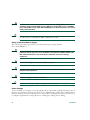
Participate in a conference
The active call is automatically selected.
Answer the phone when it rings.
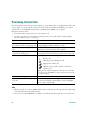
Create a conference by
Highlight a call on a shared line and press cBarge. (You may need to
barging a call on a shared line press the more softkey to display cBarge.)
See the “Using a Shared Line” section on page 36.
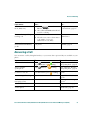
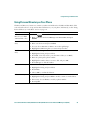
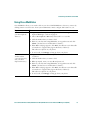
View a list of conference
participants
1. Highlight an active conference.
2. Press ConfList.
Participants are listed in the order in which they join the conference
with the most recent additions at the top.
Get an updated list of
participants
While viewing the conference list, press Update.
Cisco Unified IP Phone 7961G/7961G-GE and 7941G/7941G-GE for Cisco Unified CallManager 5.0 (SCCP)
31