1
Connecting External Audio/Video Devices
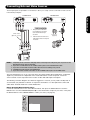
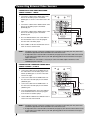
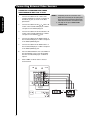
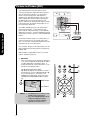
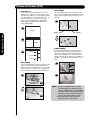
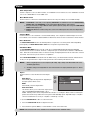
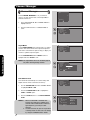
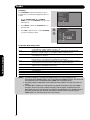
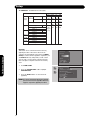
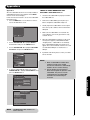
CONNECTING A VIDEO AND MANAURAL AUDIO
SOURCE TO INPUT 1, INPUT 2 OR INPUT 5
First time use
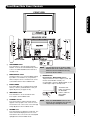
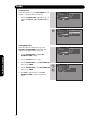
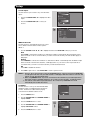
1. Connect the cable from the VIDEO OUT of the
VCR or the laserdisc player to the INPUT
(VIDEO) jack, as shown on the Rear Panel on the
right.
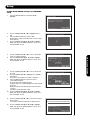
2. Connect the cable from the AUDIO OUT of the
VCR or the laserdisc player to the INPUT
(MONO)/L(AUDIO) jack.
3. Press the INPUTS button, then select INPUT 2
from the INPUTS menu to view the program
from the VCR or the laserdisc player.
AUDIO OUT VIDEO OUT
Back of VCR
4. Select CABLE or AIR from the INPUTS menu to
return to the previous channel.
VCR
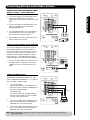
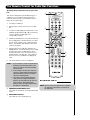
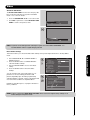
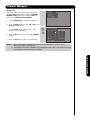
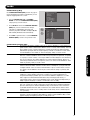
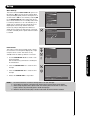
CONNECTING AN EXTERNAL AUDIO AMPLIFIER
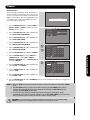
To monitor the audio level of the Plasma TV to an
external audio amplifier, connect the system as
shown on the right. The “OPTICAL OUT” from the
Rear Panel is a fixed output. The Volume of the
amplifier is controlled by the amplifier, not by the
Plasma Television. The OPTICAL OUT terminal
outputs all audio sources with Optical IN capability.
Stereo System Amplifier
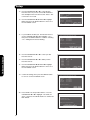
1. Connect an optical cable from the Optical out to
the Optical input of a separate Stereo System
Amplifier as shown on the Rear Panel on the
right.
OPTICAL
INPUT
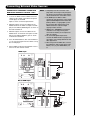
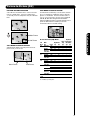
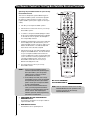
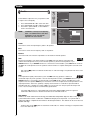
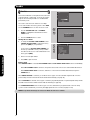
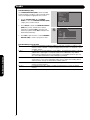
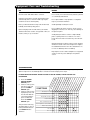
CONNECTING MONITOR OUT
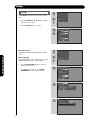
The MONITOR OUT terminal outputs video and
audio of CABLE/AIR and INPUTS 1, 2, 3, 4 and 5. It
does not output component video.
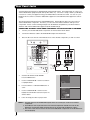
1.
Connecting S-Video:
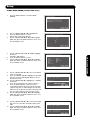
Connect the cable from the S-VIDEO OUT of
the Rear Panel to the INPUT (S-VIDEO) jack, of
the VCR or Laserdisk player.
Optional
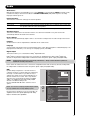
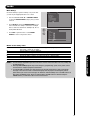
Connecting Video:
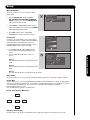
Connect the cable from the VIDEO INPUT of
the VCR or the laserdisc player to the VIDEO
out jack on the TV Rear Panel.
2.
3.
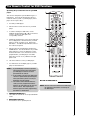
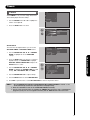
Connect the cable from the AUDIO IN R of the
VCR or the laserdisc player to the OUTPUT
(AUDIO/R) jack on the TV Rear Panel.
R
L
V S-VIDEO
INPUT
VCR or other external
components
Connect the cable from the AUDIO IN L of the
VCR or the laserdisc player to the OUTPUT
(AUDIO/L) jack on the TV Rear Panel.
NOTE: When making video connections, connect S-Video only or Video only. If both are connected, SVideo takes priority.
19