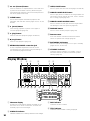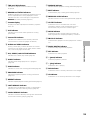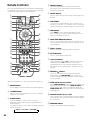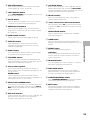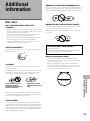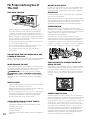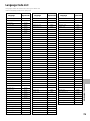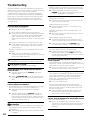
1
Notes
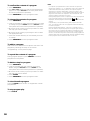
• Noise is output if you make digital audio connections to a
receiver or amplifier that does not have a built-in decoder.
Check that the digital audio output format selected in the
Audio 1 menu corresponds to the audio components you have
made connections to (page 41).
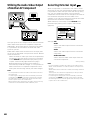
• The TV screen size is factory set to present the wide screen
format (16:9 aspect ratio). If you have a standard TV screen
(4:3 aspect ratio), this setting can be changed to match your TV
screen size in the Video menu (page 43).
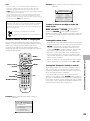
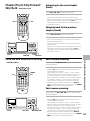
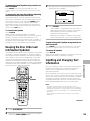
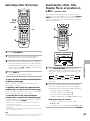
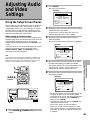
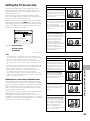
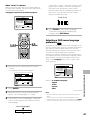
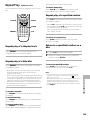
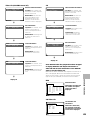
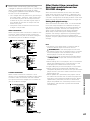
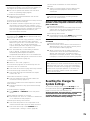
Example: When a Video CD that has Playback Control is
selected
STANDARD VOCAL BEST
1
Don't Tekno for an Answer
Bertie B.& the Goans
2
Bad Whack Naff Riff
Hood in the Boyz
3
dubmyheadbassman
Sleek Machine
4
Gooey Love Jingle
Philip William
5
Praise the Day
Formerly an Artist
6
G3, Ba-san
Pfeuti
7
Abstract Jazz Phunk
John Torn
8
Rock the Love Jive
Hot Monkey Stick
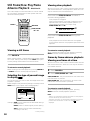
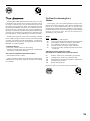
When an operation is prohibited
There are times when you are using the changer and attempt
to perform an operation, but for some reason it cannot be
performed. When this occurs, one of the two following icons
appears on the screen.
The operation is prohibited by the changer.
The operation is prohibited by the programming on
the disc.
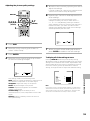
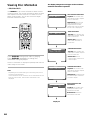
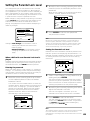
When a menu screen is displayed
Menu screens are displayed for DVDs that have menu
screens or Video CDs that include PBC (Playback Control).
DVDs often contain extra information that can be
accessed in the DVD menu and sometimes makes
navigating DVD menu screens as enjoyable as watching
the feature presentation.
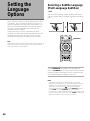
POWER
DISPLAY
AUDIO
OPEN/
CLOSE
SUBTITLE ANGLE
TOP MENU
SETUP
STUP
MENU
F.MEM
Number buttons
TOP MENU
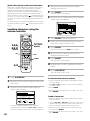
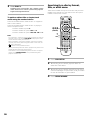
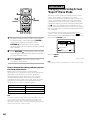
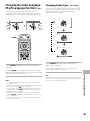
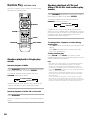
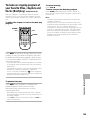
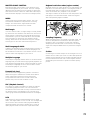
To navigate a menu screen
• Although individual DVD titles may differ, when a menu
screen is displayed, use the cursor control joystick and
ENTER on the remote controller. The cursor control
joystick is used to move around the options on the
screen and ENTER is used for selection. Occasionally,
the number buttons may also be used to make
selections. If this is possible, using number buttons
serves to directly select an option on a menu screen.
• Only number buttons are used to make selections on
Video CD menu screens.
• When the Video CD has more than one menu, pages
can be advanced to or returned to with 4 or ¢.
ENTER
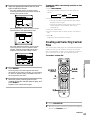
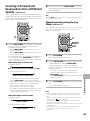
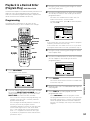
Turning PBC (Playback Control) on and off
FUNCTION
MEMORY
4
RETURN
+
ENTER
Cursor control
joystick
STOP7
T.MNU
MULTI DIAL
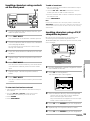
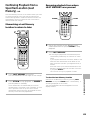
Although this differs depending on the disc, pressing
MENU, TOP MENU, or RETURN
during DVD
playback or RETURN
during Video CD playback
displays the menu screen. Refer to the DVD or Video CD
disc jacket and accompanying documentation for more
information.
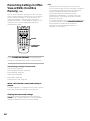
When playing Video CDs with PBC (Playback Control),
PBC is technically on by default and a menu screen is
displayed. Additionally, the menu screen is returned to
when the selected track is complete.
SELECT
DISC No. JOG MODE
DNR
JOG
DISC
STOP
PLAY
PAUSE
RETURN
STEP / SLOW
SEARCH MODE
¢
CLEAR
1
2
3
C
4
5
6
+10
7
8
9
RDM
RPT
0
PROGRAM
RANDOM REPEAT
A-B
SUB
SETUP
LAST
CONDITION
MEMORY MEMORY
HI-LITE
PREVIOUS
SCAN
PGM
PLAY
MODE
BEST
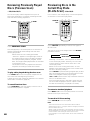
If you would like to turn PBC off so that the menu
screen is not displayed, press STOP 7 when a Video CD
with PBC is selected and then press the number button
of the track you want to play. Please note that a number
of functions such as random and program playback may
not be possible unless PBC is turned off.
GETTING STARTED USING YOUR DVD CHANGER
-
MENU
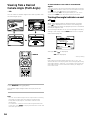
To open or return to the DVD or Video CD
menu screen
REMOTE CONTROLLER
RC-416 DV
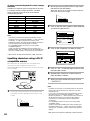
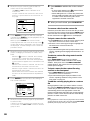
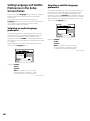
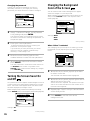
Example: When a DVD that has menu screens is
selected
1
2
3
4
5
6
Highlight Clips
Chapter List
Commercial Header
Subtitles
Soundtrack
Start Main Feature
25