1
4 Managing Microsoft® Pocket Outlook applications
Inbox
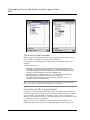
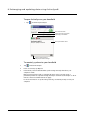
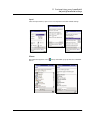
Synchronising email messages
Email messages can be synchronised as part of the general synchronisation process.
You will need to enable Inbox synchronisation in ActiveSync.
For information on enabling Inbox synchronisation, see ActiveSync Help on your
computer.
During synchronisation:
• Messages are copied from the mail folders of Exchange or Outlook on your
computer to the ActiveSync folder in Inbox on your handheld. By default, you
will receive messages from the past three days only, the first 100 lines of each
message, and file attachments of less than 100 KB in size.
• Email messages in the Outbox folder on your handheld are transferred to
Exchange or Outlook, and then sent from those programs.
• Email messages in subfolders must be selected in ActiveSync on your
computer in order to be transferred.
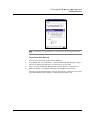
TIP: You can also synchronise email messages with your computer from a remote location.
For more information, see the ActiveSync Help menu in your computer.
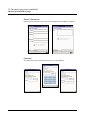
Connecting directly to an email server
In addition to synchronising email messages with your computer, you can send and
receive email messages by connecting to an email server using a modem or a network
card connected to your handheld. You'll need to set up a remote connection to a
network or an ISP, and a connection to your email server. For more information, refer
to "9 Getting connected" on page 101.
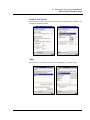
When you connect to the email server, new messages are downloaded to your
handheld’s Inbox folder, messages in the handheld’s Outbox folder are sent, and
44