1
hp officejet d series
front panel
features
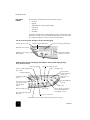
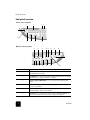
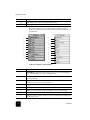
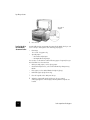
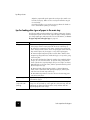
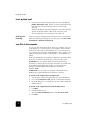
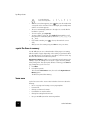
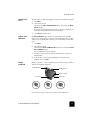
The front panel is divided into the following main regions:
•
Fax area
•
Keypad
•
Shared buttons and front-panel display
•
Copy area
•
Scan area
•
On button
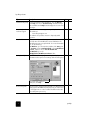
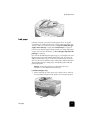
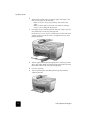
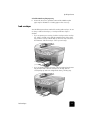
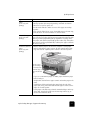
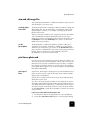
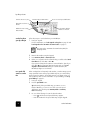
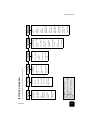
Review the illustrations below and identify the location of the buttons on the
front panel. You will not use all of the front-panel features in the tutorial, but
you may find it helpful to note the locations of all the buttons.
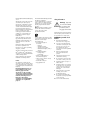
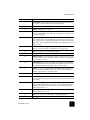
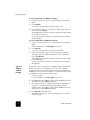
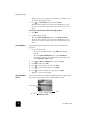
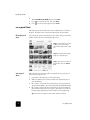
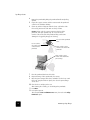
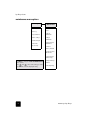
Left side of the front panel showing the Fax area and the keypad
Scroll through speed-dial entries.
Turn Auto Answer on/off.
Access one-touch speed-dial buttons.
Change the fax resolution.
Use keypad to dial fax
numbers or enter text.
Redials the most recently
dialed number.
Start fax.
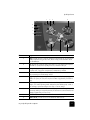
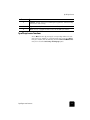
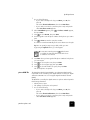
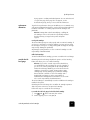
Right side of the front panel showing the shared buttons and front-panel display, the Copy
area, and the Scan area
Set the copy quality.
Choose the number of copies.
Select a currently displayed menu
item or value.
Reduce or enlarge a copy.
Select a specific
software program to
scan to, or a
computer, if on a
network
Front-panel display.
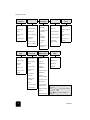
Scroll through settings
options.
Turn the HP OfficeJet
on or off.
Access photo card,
copy, fax, scan, and
network settings
options.
Start a scan.
Start a copy.
Make two-sided copies.
Choose the paper type and
paper tray.
Access special copy features,
such as Fit to Page, Mirror,
MarginShift, or Poster.
Stop a job or exit a menu.
Make brightness and contrast adjustments when faxing and copying.
4
quick start