1
38
Chapter 6 Avaya 2050 IP Softphone USB Headset Adapter
3
To select the feature, click OK.
Note: If only one feature shows up in the menu, the Don't display this
dialog again check box appears. Select this check box to map the Smart
Function button directly to that one available feature. You can then press
the Smart Function button to execute the feature directly, bypassing the
menu.
Note: The Smart Functions button is available only on the desktop
version of the USB Headset Adapter.
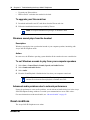
Customizing the Smart Functions menu
You can customize the features that appear on the Smart Functions menu using the Configuration
Utility.
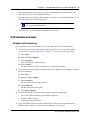
To customize the Smart Functions menu
1
From the Call Control window, select File > Settings > USB Headset
The USB Headset Settings window opens.
2
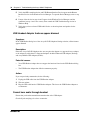
Click Configure Smart Functions.
The Configure Smart Functions dialog box opens.
3
From the dialog box, you can Add, Remove, or Rearrange functions from the Smart Function
menu.
— To add a function, select the function you want from the Available functions list, and then
click Add.
— To remove a function, select the function you want to remove from the list, and then click
Remove.
— To rearrange a function, click the function you want to move either up or down in the
menu, and then click the appropriate button: Move Up or Move down.
4
To close the Configure Smart Functions dialog box, click OK.
5
To close the USB Headset dialog box, click OK.
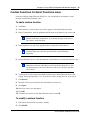
You can also add special functions to the Smart Functions menu.
NN40050-100