1
Exercise # 1
Testing Voicemail Pro
In this exercise you will run the Voicemail Professional Server and ensure Voicemail is
operational (If you completed the IP Office Exercises this Exercise is completed).
1.
2.
In Manager open License.
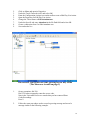
Retrieve system configurations and make sure the license for Voicemail Pro
(4 Ports) is Valid.
Exercise # 2a
This part of the exercise allows you to test that Voicemail Pro Server is operational on an
analog handset.
1.
2.
3.
4.
From station 201 dial Station 208 – do not answer the call.
You will be passed to the Voicemail Server and played the standard greeting for
station 208.
While listening to the greeting press 1 and you will be able to bypass the greeting
and leave a message, leave about a five-second message and hang-up.
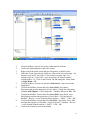
Using the start menu open: My Computer / Local Disk C: / Program Files /
Avaya / IP Office / Voicemail Pro / VM / Accounts / Jodie – double click on the
WAV file and listen to it and Delete the file > now close the files.
Exercise # 2b
This part of the exercise you will program Ring Back notification on station 208.
1. Open Manager and click on User.
2. Click on Jodie 208 and select the Voicemail tab.
3. Check the Voicemail Ringback square and click OK.
4. Save and send translations back to the IP Office.
5. Repeat Exercise 2a steps 1 – 3.
6. Notice that you now have a flashing red light on station 208.
7. Take station 208 off hook and hang-up.
8. Station 208 will give you bursts of ringing (ring back notification).
9. Pick up station 208 and notice you are connected to Voice Mail.
10. You are at your extension so enter only #, there is no password so enter #, enter a new
password 14#, reenter your new password 14#, now record your name (Jodie) Now
you can get your message, Press 2 for messages and then 0 to listen, *3 to delete.
Exercise # 2c
This part of the exercise allows you to test that Voicemail Pro Server is operational on
1400 series telephones.
2