1
Upgrade Procedure
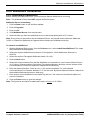
Backup Your Database
Before proceeding, backup your existing database. This is a precautionary measure that should be taken
just in case something goes wrong during the upgrade and you need to revert to the existing database.
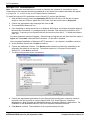
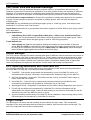
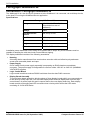
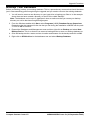
1. You will need to create a new directory on your hard drive to backup your files to. In the example
shown here we have created a directory on the D Drive called "Backup".
Note: The database can be up to 2 gigabytes in size so make sure that you create your backup
directory on a drive that has enough storage space.
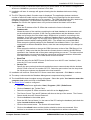
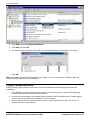
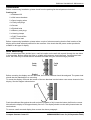
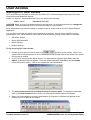
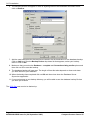
2. From the Windows taskbar click Start, select Programs | CCC | Database Server Supervisor.
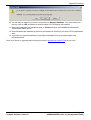
Remember that the password is the one that you set during the installation of MSDE service pack
3. Click on OK to continue.
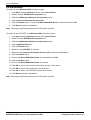
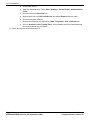
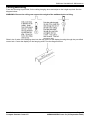
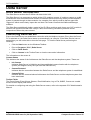
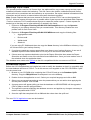
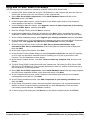
3. Expand the Databases and Management trees and then right click on Backup and select New
Backup Device. This is so that we can create a backup device to store our existing database on.
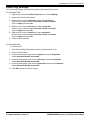
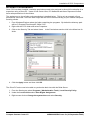
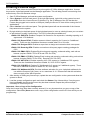
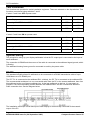
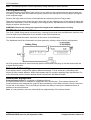
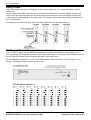
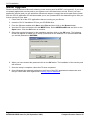
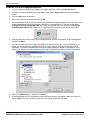
4. Give the backup device a name and set a location and filename for the backup and click on OK.
5. Right click on SDXArchiver in the databases tree and select Backup Database.
Installation
Compact Contact Center V5
Page 49
40DH0002USBG Issue 5c (29 September 2005)