1
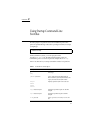
To start the PointBase client console in the Solaris 8 operating environment and Red
Hat Linux 6.2 environment, type:
$ sh ffj-install-dir/pointbase/client/console.sh
On Microsoft Windows systems, start the PointBase client console by choosing
Forte for Java EE > PointBase > Client Tools > Console from the Start menu. To stop
the client console, terminate the window from which it is running.
Note that these steps apply only to the locally installed version of the PointBase
database.
For more late-breaking information about the PointBase Network Server included
with the Forte for Java IDE, see the Forte for Java release notes at:
http://www.sun.com/forte/ffj/documentation/index.html
Using Other JDBC Enabled Databases With the
IDE
The following information applies to database drivers other than PointBase
databases.
You must place the database driver files in the Forte for Java lib/ext directory
before you start the Forte for Java IDE. If you do not do this, the dbschema wizard
does not enable you to select the proper database when you create a new schema.
You cannot mount the driver file in the Explorer to do this, nor can you place the
driver file in the CLASSPATH environment variable. You must copy the driver file
into the lib/ext folder.
For more information on database configuration and adding new database drivers,
see: http://www.sun.com/forte/ffj/resources/articles/
configdb.html.
Registering With Forte for Java
Developer Resources
Registering with Forte for Java Developer Resources enables you to:
■
16
Use the Update Center to download and install new modules and updates
specific to your environment
Forte for Java, Community Edition Getting Started Guide • August 2001