1
2 - 18 MC70 User Guide
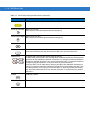
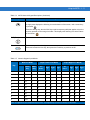
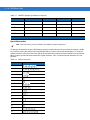
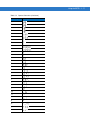
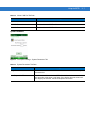
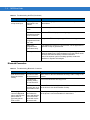
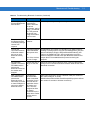
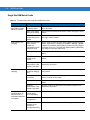
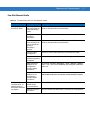
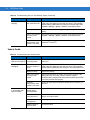
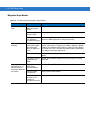
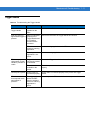
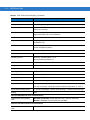
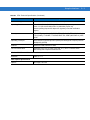
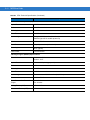
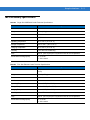
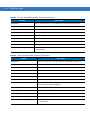
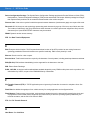
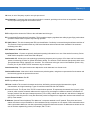
Table 2-8
Special Characters (Continued)
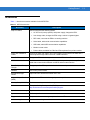
Key
Special Characters
?
:
-
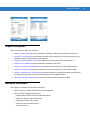
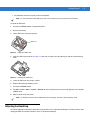
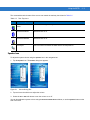
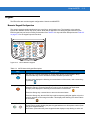
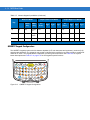
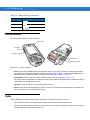
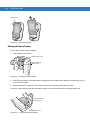
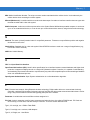
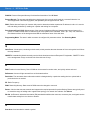
Function Buttons
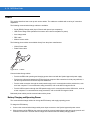
The EDA’s buttons perform certain functions.
Power Button
Scan/Action
Button
Up/Down Button
Action Button
Scan/Action Button
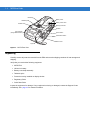
Figure 2-14
Function Buttons
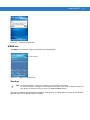
• Power: Press the red Power button to turn the EDA screen on and off. The EDA is in suspend mode when
the screen is off. For more information, see Powering On the EDA on page 1-8. Also use the Power button to
reset the EDA by performing a warm or cold boot. See Resetting the EDA on page 2-23.
• Scan/Action: Press to scan bar codes or capture images. See Data Capture on page 2-20.
Or, press to open an application or perform a function. See the Microsoft® Applications for Mobile and CE 5.0
User Guide to set an application to open.
• Up/Down: Press to increase or decrease the EDA’s volume.
• Action: Press to open an application or perform a function. See the Microsoft® Applications for Mobile and
CE 5.0 User Guide to set an application to open.
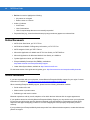
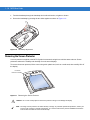
Stylus
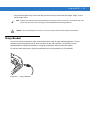
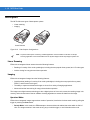
Use the EDA stylus to select items and enter information. The stylus functions as a mouse.
• Tap: Touch the screen once with the stylus to press option buttons and open menu items.
• Tap and Hold: Tap and hold the stylus on an item to see a list of actions available for that item. On the pop-up
menu that appears, tap the action to perform.