1
Eclipse_III_KB.qxd
31/07/2008
10:35
Page 2
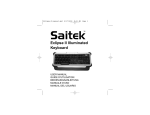
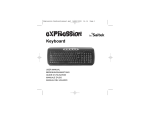
ECLIPSE III BACKLIT MULTIMEDIA KEYBOARD
Congratulations on buying your Eclipse III Backlit Keyboard. The keyboard features a sleek design,
touch-sensitive lighting and volume controls, and a range of Windows Office and multimedia keys.
Features
•
Adjustable, multi-color backlighting
•
Touch sensitive control panel
•
Two stage height adjustment and removable wrist rest
•
Pass through headphone and microphone audio ports
•
Time-saving Windows and Internet shortcut keys
•
USB plug and play
•
Color and keyboard settings remain even after system reboot
•
Laser-etched, soft-touch, durable keys
System compatibility
PC running Windows XP/XP64/Vista
Installation for all platforms
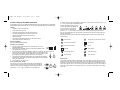
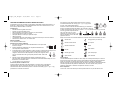
1 First plug plug the USB connector of the keyboard into one of your
computer's USB ports.
2 Follow the device installation wizard to complete the installation of the
new USB device to the system.
3 If you intend to use headphones, speakers, headset or microphone, also plug the pink and
green mini jackplugs into the corresponding audio in and out sockets of your
k
l
PC. Now plug your headset, speaker cables etc into the pink audio in (k) and
green audio out (l) sockets at the rear right side of your keyboard.
4 Go to http://www.saitek.com/uk/down/drivers.htm to download the Eclipse III
software driver. The Eclipse III keyboard’s volume indicators will not illuminate
unless you install a driver.
5 Your keyboard is now ready to use.
Touch sensitive panel controls
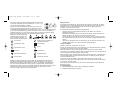
The panel at the top of your Eclipse III keyboard controls backlighting
color and intensity, as well as your PC’s media player. To change the
brightness of your keyboard backlighting, press the brightness control
(a) and then “-” (c) or “+” (d) to decrease or increase brightness.
a
b
c
To change the color of the key backlighting, first press the color selector control (b) and then “-” (c)
or “+” (d) to scroll through the backlighting colors.
Press the backlighting on/off control (e)
g
e
h
j
f
i
to switch the keyboard backlighting on
or off. To increase or decrease the
volume of your PC’s media player,
press the “-” or “+” on the volume control (f). The mute control (g) temporarily mutes all sound
from your PC and play/pause (h), previous track (i) and next track (j) control the tracks playing on
your PC media player.
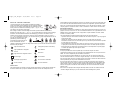
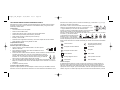
The Eclipse III has six buttons at each side of the keyboard which control various Windows and
Office functions.
Internet home
Sleep (press for 3 seconds to operate)
Internet browser forward
My computer
Internet browser back
Search
New tab
Open Outlook
Internet page reload
Open media player
Open favorites
Open calculator
Sleep function
d
Your Eclipse III keyboard features a sleep button which is operated by pressing for three seconds.
Please note that for Vista users, the sleep button may have a different function depending on your
PC settings. To check that the sleep button will make your PC sleep, go to Windows Start, Control
panel, Power options. Click on the “Choose what the power buttons do" link on the left hand side of
the window, under “When I press the sleep button on my computer”, select “Sleep” from the drag
down menu.