1
5. Copier
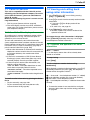
5.2.3 Quick ID copy feature / Easy repeat
feature (Scanner glass only)
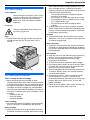
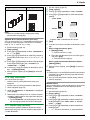
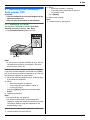
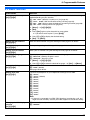
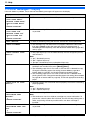
Quick ID copy feature: To copy 2-sided documents
onto one page.
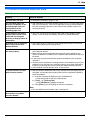
Easy repeat feature: To copy a single document
repeatedly onto one page.
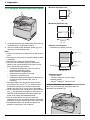
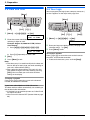
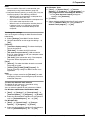
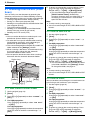
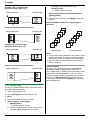
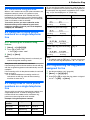
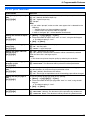
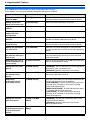
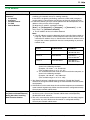
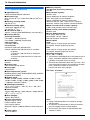
For quick ID copy feature
Original document
Page layout
“2 in 1”
“LANDSCAPE”
Note:
L The copied documents will not be reduced to fit the
recording paper, and useful for copying small sized
documents such as business cards.
“PORTRAIT”
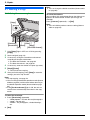
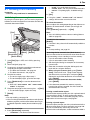
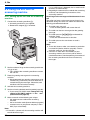
1 Set the original (page 19).
L To make a landscape copy, set the original in
landscape direction. To make a portrait copy, set
the original in portrait direction.
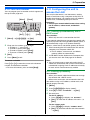
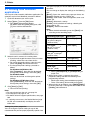
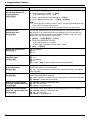
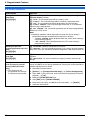
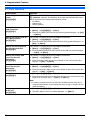
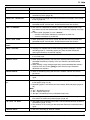
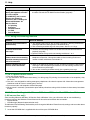
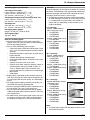
L The scanning area changes according to the
selected setting in step 4. See the following table
for details. The shaded area will be scanned.
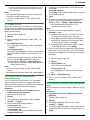
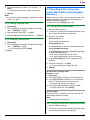
“4 in 1”
“LANDSCAPE”
“PORTRAIT”
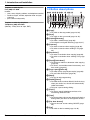
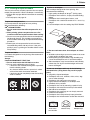
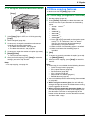
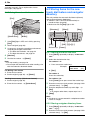
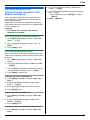
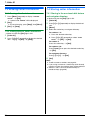
2 {Page Layout}
3 Press {V} or {^} repeatedly to select “QUIK ID
COPY” or “EASY REPEAT”. i {Set}
4 Press {V} or {^} repeatedly to select the number of
original documents from “2 in 1”, “4 in 1” or “8
in 1”. i {Set}
L For quick ID copy feature, go to the next step.
L For easy repeat feature, skip to step 6.
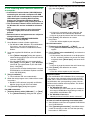
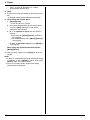
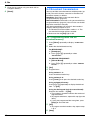
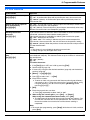
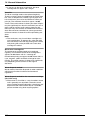
“8 in 1”
“LANDSCAPE”
5 Press {V} or {^} repeatedly to select the page layout
from “LANDSCAPE” or “PORTRAIT”. i {Set}
6 If necessary, enter the number of copies (up to 99).
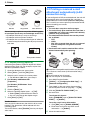
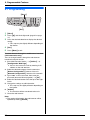
7 Quick ID copy feature:
“PORTRAIT”
1. {Black}/{Color}
L The unit will scan 1 page.
2. Place the next document on the scanner glass
and press {Set}. Repeat this until all the
documents are scanned.
L The unit will start copying.
L You can press {Black}/{Color} anytime to
start copying.
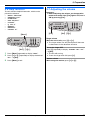
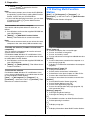
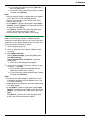
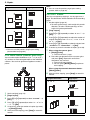
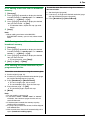
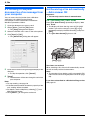
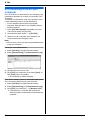
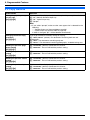
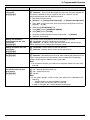
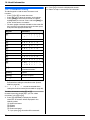
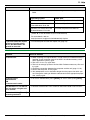
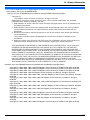
For easy repeat feature
Original document
Page layout
“2 in 1”
Easy repeat feature:
{Black}/{Color}
8 After you finish copying, press {Stop} to reset this
feature.
39