1
5.5.1 Dual Descramble
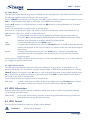
With this function you can configure the settings of scrambling capacity from smart card and
Conditional Access Module. Some smart cards and CAM’s allow to open more then only one
scrambled channel from same transponder. Please, ask your dealer for details and possibilities.
If your module and card allow to descramble two channels then you can watch one scrambled
channel on TV screen and another scrambled channel on PIP, or watch one scrambled channel on
TV screen and record another scrambled channel as FTA.
Use the pq cursor buttons to select Dual Descramble and press OK. Use the tu cursor buttons
to select Enabled or Disabled for the settings of scrambling capacity.
To save changes press the YELLOW (Save) or BLUE (Save & Exit) button.
6.0 RECORDER
6.1 Records Organiser
The Records Organiser lets you manage your TV records, MP3 Files or JPG pictures.
You can copy them onto an USB device or into another folder, or copy new ones from USB to your
receiver hard disk. You can create or delete folders, rename or delete files.
6.1.1 Digital Video Record (DVR)
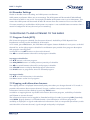
The PDR view of the Records Organiser shows all your recorded TV broadcasts. If you want you can
rename, delete, copy (to another folder or USB device) or lock them. If you lock a record, than you
will need to enter the PIN code each time you want to playback this record.
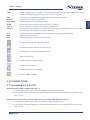
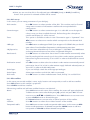
Use the tupq buttons to navigate. Press OK to open a folder or start playback, press PDR to
switch between PDR, MP3 or JPG mode. Press EXIT to leave the menu.
Use the coloured buttons to perform the associated action.
To enter to an upper folder move menu focus to folder name “..” and press OK. If you have inserted
an USB media (such as USB storage, digital camera) and wish to play files from this media – select
folder “..”, then in the list of folders select your external media (the will be USB1 or USB2).
Play selected record – simply press OK button.
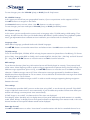
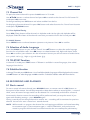
Rename record or folder: Press RED button. A keyboard will appear on screen. To delete current
name select Backspace (t) symbol and press OK. To enter new name
use tupq and OK buttons. Press the RED button to save new name or
press the GREEN button to discard changes.
Delete record or folder:
Press GREEN button. Dialog to confirm delete operation will appear on screen.
Please note, if you delete a folder then this will delete all files in a folder.
Lock record:
Press YELLOW button. A PIN code will be required to play locked record.
Create a folder:
Press BLUE button (Option) then press RED button (Create folder).
Copy file or folder:
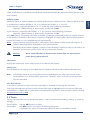
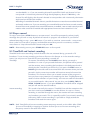
Move menu focus to a record or folder that you wish to copy. Press BLUE
button (Option) then press GREEN button (Copy to folder). In appeared
dialog select folder of destination and press RED button.
19
English
PART 1 • English