1
1
2
3
4
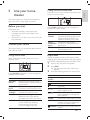
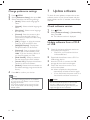
Press SETUP.
Select [General Setup], then press OK.
Select and adjust the following settings:
• [Disc Lock] : Restricts play to disc.
Password (PIN code) is required to
unlock the disc before play.
• [Display Dim] : Changes the brightness
of the display panel.
• [OSD Language] : Selects the onscreen display menu language.
• [Screen Saver] : Enables or disables
screen saver mode. If enabled, the
screen enters idle mode after 10
minutes of inactivity (for example, in
pause or stop mode).
• [Sleep Timer] : Sets a sleep timer to
switch the home theater to standby
after a specific time.
• [Auto Standby] : Enables or disables
auto standby. If enabled, the home
theater switches to standby after 30
minutes of inactivity (for example, in
pause or stop mode).
• [DivX® VOD Code] : Displays the
DivX VOD registration code for the
home theater.
4
Note
• For settings related to HDMI, the TV must be
connected through HDMI.
Change video settings
1
2
3
Press OK to confirm your choice.
Note
• Before you purchase DivX videos and play
them on the home theater, register the home
theater on www.divx.com using the DivX
VOD code.
[Speakers Delay] : Sets the delay time
for center and rear speakers to obtain
an equal audio transmission from all
the speakers.
• [HDMI Audio] : Enables or disables
HDMI audio output for the TV.
• [Audio Sync] : Sets a delay for audio
output when you play a video disc.
Press OK to confirm your choice.
4
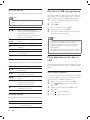
Press SETUP.
Select [Video Setup], then press OK.
Select and adjust the following settings:
• [TV System] : Selects a TV system that
is compatible with the TV.
• [TV Display] : Selects a picture display
format to fi t the TV screen.
• [Picture Settings] : Selects a
predefined color setting.
• [HDMI Setup] : Selects HDMI video
resolution and the wide screen display
format for the TV. The Wide Screen
Display option is only available for 16:9
wide screen TV display setting.
• [HD JPEG] : Enables or disables display
of high definition JPEG images.
Press OK to confirm your choice.
Note
• The best setting is automatically selected for
Change audio settings
1
2
3
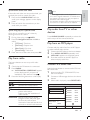
Press SETUP.
Select [Audio Setup], then press OK.
Select and adjust the following settings:
• [Speakers Volume] : Sets the volume
of each speaker to obtain the ideal
audio balance.
the TV. If you need to change the setting,
ensure that the TV supports the new setting.
• Some video settings depend on the video
source, ensure that the disc and the TV
support the setting or feature.
• For settings related to HDMI, the TV must be
connected through HDMI.
EN
13
English
•
Change general settings