1
22
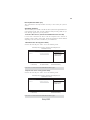
Drivers Tab
Setup
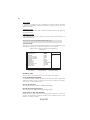
Click the Setup button to run the software installation program.
Select from the menu which software you want to install.
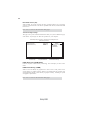
Browse CD The Browse CD button is the standard Windows command that allows you to open Windows Explorer and show the contents of the
support disk.
Before installing the software from Windows Explorer, look for a file
named README.TXT or something similar. This file may contain
important information to help you install the software correctly.
Some software is installed in separate folders for different operating
systems, such as Windows 7. Always go to the correct folder for the
kind of OS you are using.
In install the software, execute a file named SETUP.EXE by doubleclicking the file and then following the instructions on the screen.
Exit
The Exit button closes the Auto Setup window.
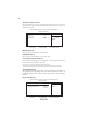
Utilities Tab
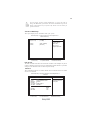
Lists the software utilities that are available on the disk.
Information Tab
Displays the path for all software and drivers available on the disk.
Running Setup
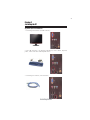
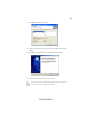
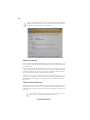
Follow these instructions to install device drivers and software for the motherboard:
1.
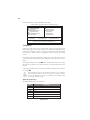
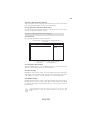
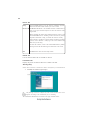
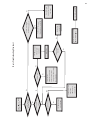
Click Setup. The installation program begins:
The following screens are examples only. The screens and driver lists will be
different according to the motherboard you are installing.
The motherboard identification is located in the upper left-hand corner.
Using the Software