1
Assign Button Function:
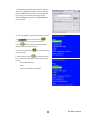
To assign a function to a button:
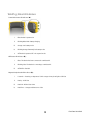
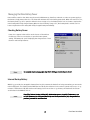
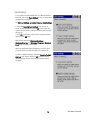
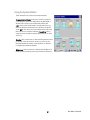
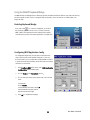
1. Start Button Manager by tapping
in the task bar.
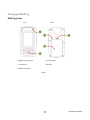
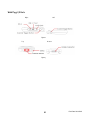
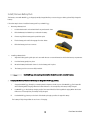
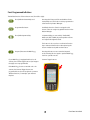
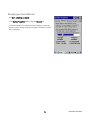
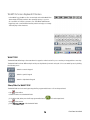
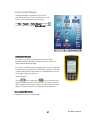
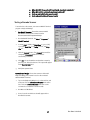
2. Tap the button (3 buttons at the bottom and 2 buttons on
the top) to be programmed. The tapped button changes to
an orange status, as shown in the picture to the right.
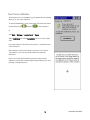
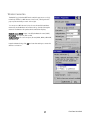
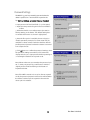
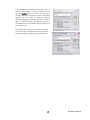
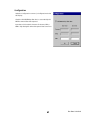
3. In the Normal tab, there are 6 predefined functions
Internet Explorer
Show/Hide OSK
Touch calibration
Run a specific program
System Utility
No action
User can select one of the functions to incorporate.
If user chooses to run a specific program, user has to enter
the path name of the executable program and its
parameters if has.
4. Click OK to assign the function to the selected button.
5. The function is now assigned. Click the previously
selected button to enable the function.
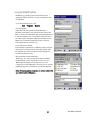
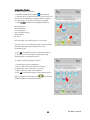
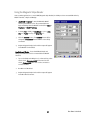
To assign a combination function button:
1. Tap the button to be programmable.
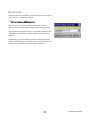
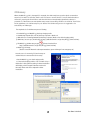
2. Click on the “Fn On” tab. Only the 2nd button is
programmable. Click on the button to select it.
3. Select a function listed on the FnON tab.
4. Click OK to enable this function on the selected button.
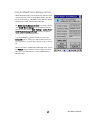
After a successful configuration, click
Predefined button to enable the function.
then click the
34
Rev Date 9/16/2010