1
Chapter 2 — Scanning with the SR31T Tethered Scanner
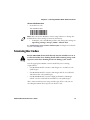
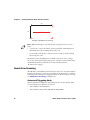
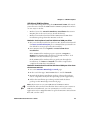
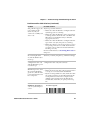
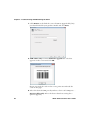
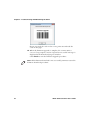
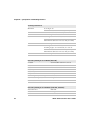
To turn off vibrate alert
•
Scan this bar code
Turn off vibrate alert
Note: You can use the EasySet scanner setup software to change the
default vibrate alert settings (activation, duration):
•
in EasySet, select the SR31T product and change the settings in
Operating settings > Beeps / LEDs > Vibrate alert
See Configuring Your Scanner with EasySet in Chapter 4 for details
on how to use EasySet.
Scanning Bar Codes
For the SR31THP do not look directly into the window area or at
a reflection of the laser framing beam while scanning. Long-term
exposure to the laser framing beam can damage your vision.
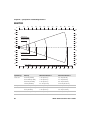
Use the appropriate SR31T scanner model for your scanning
requirements:
•
the SR31T1D model contains a 1D imager to scan 1D bar code
symbologies
•
the SR31T2D models contain a 2D imager which can read both
1D and 2D bar code symbologies
•
the SR31THP model contains a high performance 2D imager
which can also read both 1D and 2D bar code symbologies
The scanner model you are using and the type of bar code you are
decoding determine the way you scan the bar code.
SR31T Tethered Scanner User’s Guide
13