1
◦
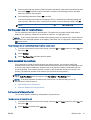
Print in Grayscale: Allows you to print a black and white document using the black ink only.
Select Black Ink Only, and then click OK.
◦
HP Real Life Technologies: This feature smooths and sharpens images and graphics for
improved print quality.
◦
Booklet: Allows you to print a multiple-page document as a booklet. It places two pages on
each side of a sheet that can then be folded into a booklet in half size of the paper. Select a
binding method from the drop-down list, and then click OK.
●
Booklet-LeftBinding: The binding side after folded into a booklet appears at the left
side. Select the option if your reading habit is from left to right.
●
Booklet-RightBinding: The binding side after folded into a booklet appears at the right
side. Select the option if your reading habit is from right to left.
NOTE: The preview on the Layout tab cannot reflect what you select from the Booklet
drop-down list.
◦
Pages per Sheet Layout: Helps you specify the order of the pages if you print the document
with more than two pages per sheet.
NOTE: The preview on the Layout tab cannot reflect what you select from the Pages per
Sheet Layout drop-down list.
◦
Page Borders: Allows you to add the borders to the pages if you print the document with
two or more pages per sheet.
NOTE: The preview on the Layout tab cannot reflect what you select from the Page
Borders drop-down list.
Notes
●
Original HP ink cartridges are designed and tested with HP printers and papers to help you
easily produce great results, time after time.
NOTE: HP cannot guarantee the quality or reliability of non-HP supplies. Product service or
repairs required as a result of using a non-HP supply will not be covered under warranty.
If you believe you purchased Original HP ink cartridges, go to www.hp.com/go/anticounterfeit.
●
Ink level warnings and indicators provide estimates for planning purposes only.
NOTE: When you receive a low-ink warning message, consider having a replacement cartridge
available to avoid possible printing delays. You do not need to replace the cartridges until print
quality becomes unacceptable.
16
●
Software settings selected in the print driver only apply to printing, they do not apply to copying
or scanning.
●
You can print your document on both sides of the paper.
Chapter 3 Print
ENWW