1
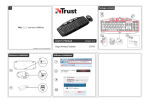
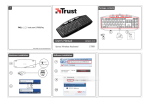
MaxTrack Wireless Deskset – User’s Manual Package contents (Package contents) USB Receiver Keyboard section Multimedia keys (see “Using MaxTrack’s shortcuts”) Keyboard: Volume control (see “Using MaxTrack with a media player”) Low battery indicator Battery compartment Side buttons Scroll wheel Battery compartment Batteries (1xAA and 2xAAA) Mouse: Hardware installation (Hardware installation) Insert the AAA batteries in the keyboard’s battery compartment Insert the AA battery in the mouse’s battery compartment Switch On the mouse Connect the USB receiver to one of your computer’s USB port After a few seconds, your MaxTrack deskset is ready to use Software installation (Software installation) Visit www.trust.com/17088/drivers button corresponding to your Windows version Click the When requested, “Run” the file. Click “Yes” to allow “Setup.exe – Published by Trust International BV” to install Welcome to the Installshield: Click Next Ready to install: Click Next Installshield Wizard Complete: Click “Finish” Using the keyboard The keyboard country layout settings in Windows should match the keyboard layout of your Trust keyboard. The layout of the Trust keyboard is specified by a sticker on the Box. To set the keyboard layout in Windows: Go to: Start Control Panel (classic view) Regional and Language Options Keyboards and Languages (XP: Languages) Change Keyboards (XP: Details) The Alt Gr key gives access to special characters like the Euro sign. 2