1
PPX4350_UM_EN_253624544.book Page 13 Jeudi, 29. janvier 2015 11:35 11
8 Media Playback
File Format
Notice
Best Settings for Optimal Use
Read the informations on the best settings in
the chapter settings (see also Settings,
page 16) for optimal use of your device.
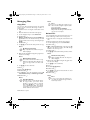
Video playback
Video Playback (USB / MICRO SD
/ Internal Memory)
1
2
3
4
5
Switch the device on using the on/off on the side.
After the initial screen the main menu appears.
Use the navigation keys to select Videos.
Confirm with à.
With connected memory: Using the keys /
select the internal memory, the USB storage
medium or the memory card.
6 Confirm with à.
7 Use / to select the video file that you wish to
play.
Notice
Displaying Video Files
Only compatible video with the Pocket
Projector will be displayed.
8 Press à to start playback.
9 Press
to end the playback and return to the
overview.
10 When you press
again, you will return to the
main menu.
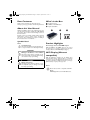
During playback you can access different settings (volume, smart settings, contrast, brightness, saturation)
use / to select the desired setting and À/Á to
finalize your settings.
There are various video file formats as *.mov, *.avi,
*.m4v. Many of these formats function as a container
that contains the various encoded audio and video files.
MPEG-4, H.264, MP3, and AAC are all examples of
encoded audio/video files. In order to play these files,
the projector must read them and decode the audio/
video signals.
Please note that some files cannot be played as a result
of different video and audio encoders.
Supported file formats
Container
Video format
*.avi
XVID; MPEG-4; H.264;
MJPEG
*.mov
MPEG-4; H.264;H.263
*.mp4
MPEG-4; H.264;H.263
*.mkv
XVID; MPEG-4; H.264;
MJPEG
*.ts
H.264
*.m2ts
H.264
*.3gp
H.263
*. lvr
MPEG-4; H.264;H.263
Video Playback (Mini-HDMI
Socket)
1 Connect the HDMI output of the external device to
the Pocket Projector's socket.
2 Start the video playback on the external device.
To change the currently playing sound, press / to
select Volume and press À/Á to increase or
decrease the volume.
Modify settings during playback
1 Press the or key, Volume appears.
2 Use the / keys to choose from the following
settings:
Volume: Adjust volume level
Smart Settings: Select predefined settings for Natural / Cinema / Manual / Standard / Vivid
Saturation: Adjust colour saturation
Contrast: Adjust contrast
Brightness: Adjust brightness
3 Modify the setting using À/Á.
The device saves the modified settings automatically.
Media Playback
13